- Home Working
- In the Workplace
Laptop Stand Buying Guide
What a Laptop Stand Does (and Why It Matters)
A laptop stand isn’t a decorative accessory—it changes how your body interacts with your screen over time. Its core job is to reposition the laptop so the display works with your posture instead of against it, while also affecting comfort and heat behaviour during longer sessions.
If you spend more than a couple of hours a day working directly on a laptop, a stand can make a noticeable difference. If your laptop use is brief, or you already work from an external monitor positioned at eye level, a stand is usually unnecessary.
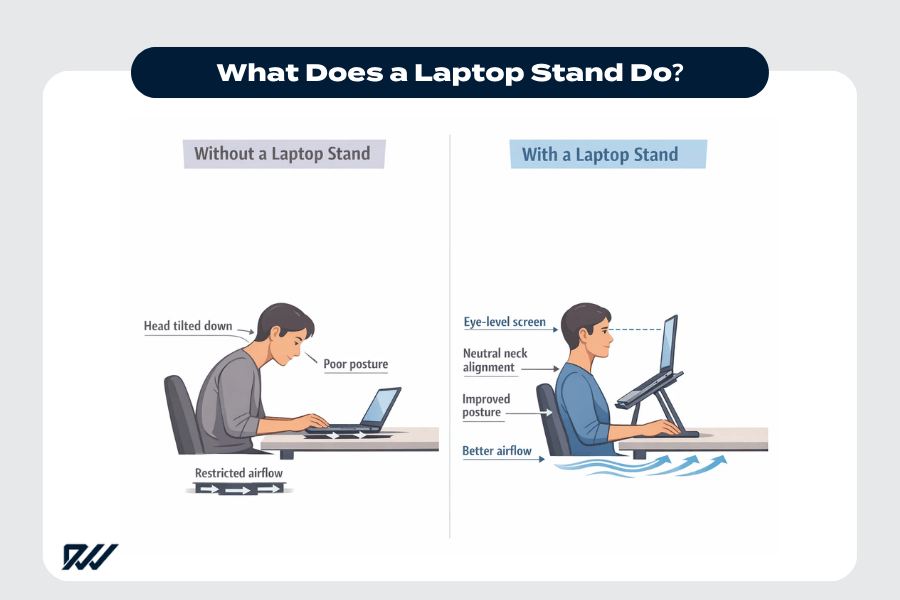
Ergonomics benefits: eye-level screen + better posture
When you work directly on a laptop placed flat on a desk, your eyes angle downward and your head follows. Over long days, that downward gaze increases neck flexion, pulling your head forward and loading the upper spine. That strain compounds quietly because you rarely notice it until hours later.
Raising the screen closer to eye level changes the mechanics. Your head stays stacked over your shoulders instead of drifting forward, reducing stress on the cervical spine. Picture the difference between reading your phone in your lap versus holding it up at eye height: same content, very different posture. A stand supports that more neutral alignment, but it’s not magic—if you keep typing on the built-in keyboard without adjusting input, posture gains are limited. A common mistake is assuming a stand alone fixes everything; it improves viewing posture, not typing posture by itself.
Comfort and productivity improvements for long sessions
Poor posture doesn’t fail all at once—it fails gradually through fatigue. Static positions increase muscle tension, especially in the neck and shoulders, which drains focus over time. During a full remote workday, even small posture improvements can delay that fatigue curve.
A stand helps by enabling micro-adjustments: sitting taller, relaxing the shoulders, and keeping the head balanced. In practice, that often shows up as reduced shoulder tension and fewer posture “resets” throughout the day. The productivity benefit isn’t that you suddenly work faster—it’s that you can work longer without discomfort breaking concentration. These gains scale with proper setup; overstating productivity improvements without context is misleading.
Cooling/airflow benefits and when they help (vs. fans)
Laptops cool themselves by pulling air through intake vents and pushing heat out through exhaust paths. When a laptop sits flat on a desk, those intakes—often on the underside or rear—can be partially blocked. Elevating the laptop creates clearance, improving passive airflow.
This can matter during sustained loads like video calls, where I’ve seen thermal throttling kick in less often with better airflow. However, a stand doesn’t actively move air. Compared to a fan, it simply removes obstructions. If vents are already unobstructed or the laptop runs cool, temperature changes may be minimal. Not all stands reduce heat; cooling benefits are situational, not guaranteed.
Laptop Stand Types Explained
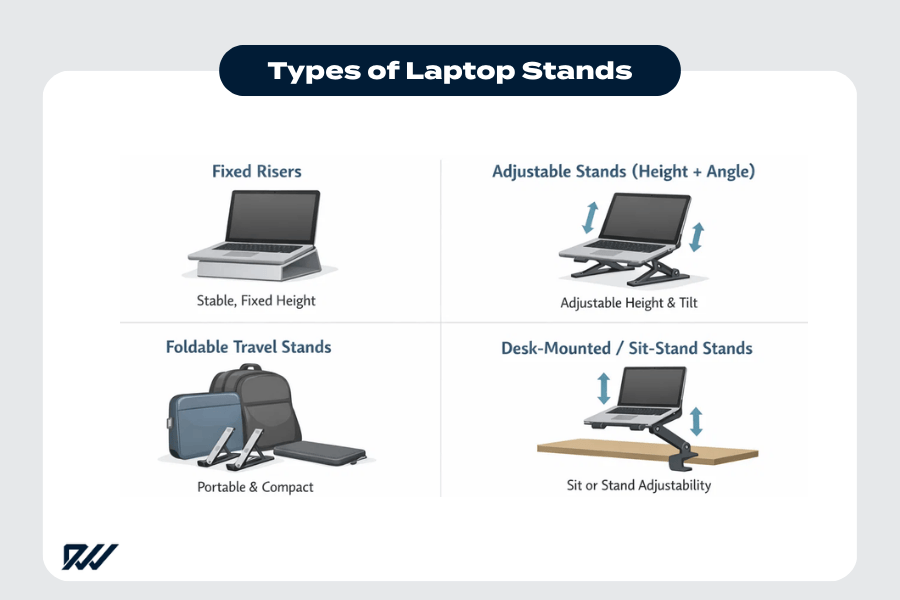
Laptop stands fall into a handful of structural categories, each designed to solve a different problem. The key difference between them isn’t looks—it’s how much adjustability, stability, and positional control they offer during real work sessions. Understanding these categories makes it easier to narrow your options without assuming there’s one “best” stand for everyone.
The right choice depends on how much adjustment and movement your setup actually needs. No single design works equally well for every desk, posture, or workflow.
Fixed risers (simple, stable, budget-friendly)
Fixed risers are non-adjustable platforms that lift a laptop to a single, predetermined height and angle. They don’t move, hinge, or fold—what you see is what you get. In daily use, they often feel very solid, especially when typing, because there are no joints to flex or wobble.
They work best for users whose desk height and chair already place the screen close to a comfortable viewing position. The trade-off is flexibility: if the height doesn’t match your body or desk, there’s no way to correct it.
Pros
- Stable typing feel
- Simple setup
- Minimal adjustment required
Cons
- No height or angle changes
- Ergonomic fit depends entirely on desk height
A common mistake is assuming fixed risers are ergonomic for everyone—they’re only ergonomic if the geometry already works.
Adjustable stands (height + angle) for ergonomic setups
Adjustable stands use hinges, arms, or sliding mechanisms to change both screen height and tilt. This flexibility lets you dial in eye-level alignment across different desks or seating positions. For example, you might raise the screen several inches higher at a standing desk, then lower it again when seated.
The trade-off is mechanical complexity. Hinges must balance strength with smooth movement, and every joint introduces a potential stability limit. Push an adjustable stand too high or type aggressively, and you may notice slight bounce.
These stands are the primary choice for ergonomic-focused setups—but only when adjusted within their stable range. Ignoring those limits is the most common failure mode.
Foldable travel stands (lightweight / packable)
Foldable travel stands prioritise portability. They collapse into thin profiles that fit into backpacks or laptop sleeves, making them popular with commuters and frequent travellers. On a café table or hotel desk, they’re easy to deploy and adjust quickly.
That portability comes at the cost of rigidity. Lightweight frames flex more, and smaller footprints transmit more vibration when typing. After months of commuting, hinge wear can also reduce stability.
A common mistake is expecting desk-level stability from a travel stand. They’re designed for mobility first, not all-day rigidity.
Desk-mounted / sit-stand converter styles
Desk-mounted stands attach directly to the desk via clamps or mounts, often using articulated arms. These allow large vertical movement ranges, including seated-to-standing transitions, without lifting the laptop manually.
They’re best for dedicated workstations with sufficient desk clearance and structural support. Mechanical arms rely on tension systems; if the desk edge is thin or cluttered, mounting can be impractical. For small desks, this category is often overkill.
Bed/couch “lap desk” styles
Lap desks rest on your legs or soft surfaces and are meant for casual use. They trade posture precision for comfort and flexibility.
Trade-offs
- Comfortable on soft surfaces
- Poor posture control
- Heat build-up risk on thighs
They’re useful for short sessions but are often mistaken for ergonomic solutions. Heat management and posture support are limited, making them unsuitable for long work periods.
How to Choose the Right Size and Compatibility
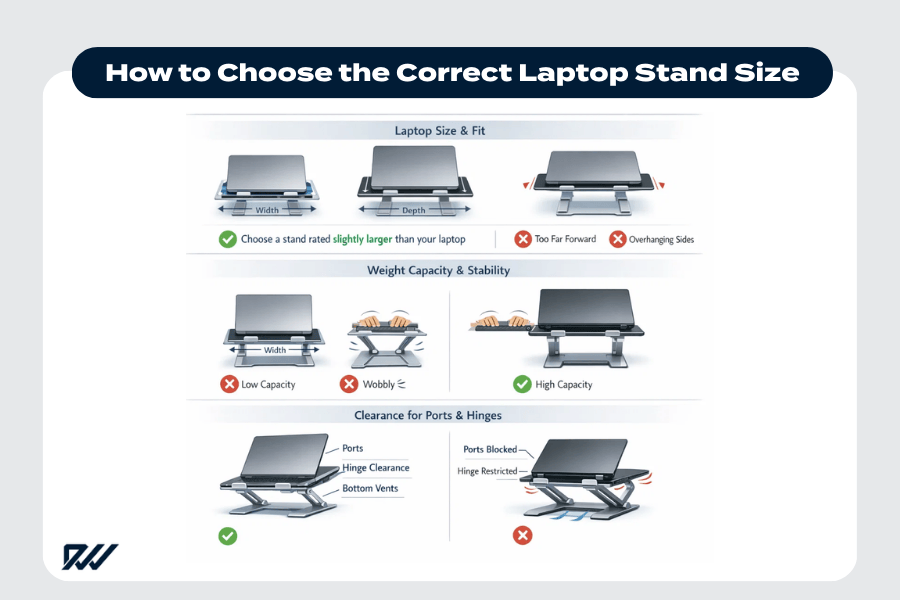
Once you know which type of stand you want, the next risk is buying one that technically “fits” but falls short in everyday use. Size and compatibility issues often show up as wobble, blocked ports, or hinges that don’t open fully—problems that aren’t obvious from product photos.
It’s safest to choose a stand rated for a larger screen size and higher weight than your laptop actually requires. Be cautious of products that rely on vague claims like “fits most laptops” without listing specific dimensions or weight limits.
Laptop screen size range (e.g., 10–17 inches) and fit
Laptop stands aren’t sized by screen inches alone—they’re sized by platform width and depth. The advertised screen range is shorthand for how much physical surface area the stand supports. Two laptops with the same screen size can have very different footprints, which affects balance and contact points.
When a laptop overhangs the platform, weight shifts forward or backward, increasing slip risk.
Common size mismatches
- 16-inch laptop on a stand sized for 13-inch models
- Wide chassis supported only at the rear corners
- Deep laptops with front edges hanging past the lip
Weight capacity and why it matters for stability
Weight ratings describe static load, but daily use adds dynamic load—typing pressure, palm rests, and screen adjustments. Every keystroke introduces small forces that compound over time. A stand rated for 4 kg holding a 3.5 kg laptop may seem fine initially, but it’s already operating near its tolerance.
Heavier laptops often exceed expectations. Gaming and workstation models pack dense components, concentrating weight in smaller areas. Choosing a stand with buffer capacity keeps joints within safe operating ranges.
Key rule: don’t match ratings exactly—leave margin.
A common mistake is assuming “metal” automatically means high weight tolerance.
Clearance for ports, hinges, and thick gaming laptops
Poor clearance turns a compatible stand into a daily annoyance. Side rails can block ports, forcing tight cable bends that strain connectors. Rear supports can also interfere with screen hinges, limiting how far the display opens.
Hinge clearance matters for airflow too. If the hinge can’t articulate fully, ventilation paths may be partially obstructed, especially on thicker laptops.
Clearance checklist
- Side ports fully accessible
- Rear hinge opens to full range
- Bottom vents unobstructed
- Platform depth fits thicker bases
These issues vary by laptop chassis design, and they’re easy to miss if you ignore hinge travel during setup.
Ergonomics: Height and Angle (The #1 Buying Factor)
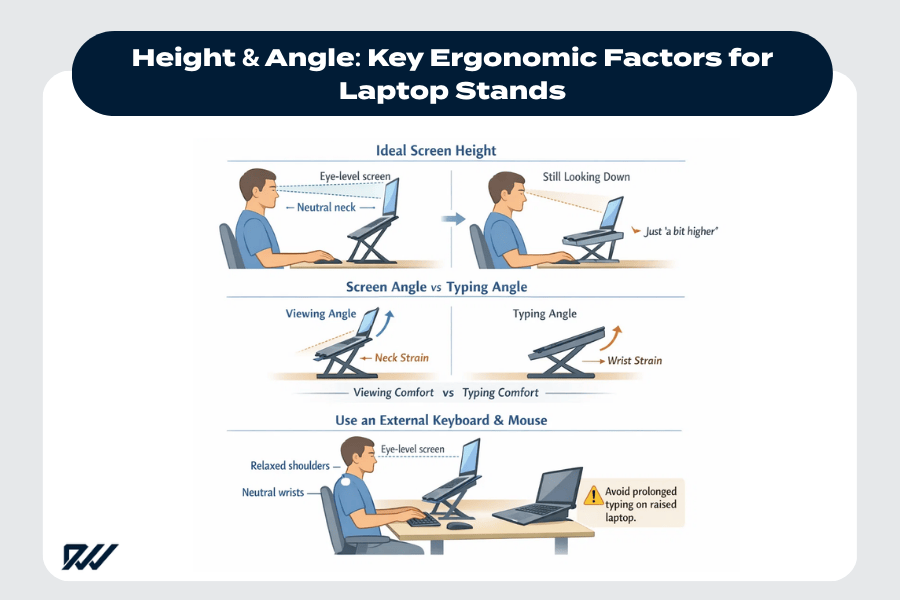
“Ergonomic” gets used loosely, but in practice it comes down to whether a stand can place the screen where your eyes naturally rest without forcing compromises elsewhere. Height and angle are what determine whether a stand actually reduces strain—or just looks adjustable.
Look for stands that can raise the screen to true eye level while you’re seated at your desk. Designs that only lift a laptop an inch or two often fall short, leaving the screen too low to make a meaningful difference.
Ideal screen height and what “adjustable” should really mean
Eye level means the top portion of the screen sits roughly at, or slightly below, your natural eye line when seated upright at your desk. On most desks, that translates to the laptop screen needing to rise 12–25 cm above the desk surface. Anything less often leaves you subtly craning your neck.
True adjustability isn’t just “up or down,” it’s incremental control. Small steps—an inch at a time—matter because desk height, chair height, and torso length vary widely. A simple rule of thumb: when you look straight ahead, your eyes should land on the upper third of the screen, not the centre or bottom. Keep in mind this assumes a standard desk and chair; if either is unusually high or low, height needs change accordingly.
Angle range for comfortable viewing vs. typing
Angle affects how your wrists and eyes share the workload. A steeper tilt improves screen visibility by reducing glare and aligning the display with your gaze. That’s great for viewing—but not always for typing.
As angle increases, wrists extend more if you type on the laptop itself, increasing strain. Shallower angles feel better for typing but may push the screen too low.
Typical trade-off
- Viewing-focused: steeper angle, better visibility, poorer wrist position
- Typing-focused: flatter angle, better wrist alignment, lower screen
Angle needs change by task. Assuming steeper is always better ignores how your hands interact with the keyboard.
When you’ll also need an external keyboard/mouse (best practice)
Raising a laptop to eye level breaks the natural relationship between screen and keyboard. Once the screen is high enough, typing on the built-in keyboard pulls shoulders up and wrists back—I’ve felt shoulder tension creep in quickly this way.
Best practice is simple:
- External keyboard at elbow height
- External mouse at the same level
- Laptop screen raised independently
This setup aligns elbows, wrists, and shoulders while preserving screen height. For short sessions, exceptions are fine—but claiming a stand alone solves ergonomics is a common and costly misunderstanding.
Stability and Safety (No Wobble, No Slips)
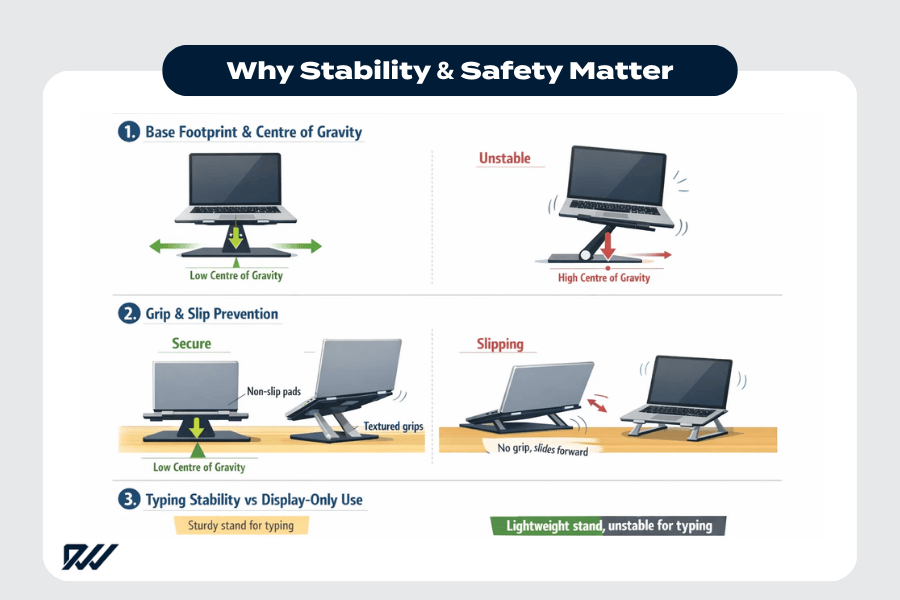
Stability is where good stands quietly disappear—and bad ones constantly remind you they’re there. Wobble, sliding, and tipping aren’t just annoying; they increase accident risk and accelerate wear on joints and hinges over time.
If you plan to type directly on the laptop, a wide, well-balanced base is essential. Narrow, top-heavy designs can seem fine at first but often start to wobble or shift once you actually begin working.
Base footprint and centre-of-gravity tips
Stability depends on the relationship between base width and height. As a stand lifts the laptop higher, the centre of gravity rises. If the base footprint doesn’t expand proportionally, even small forces can cause sway or tipping.
Typing shifts weight forward. Each keystroke transfers force toward the front edge, especially when resting palms near the trackpad. Conceptually, imagine a triangle from the base edges to the laptop’s centre of mass: the taller that triangle gets, the easier it is to destabilise.
Judging stability by stand weight alone is a common mistake. Height amplifies instability far more than mass compensates for it.
Non-slip pads, lips/hooks, and surface grip
Grip works on two levels: the stand gripping the desk, and the laptop gripping the stand. On smooth desks, even slight vibrations can cause gradual drift if friction is low.
Common retention mechanisms include:
- Rubberised feet or pads under the base
- Silicone or textured contact points on the platform
- Front lips or hooks to stop forward slide
Friction materials matter, and they wear down. Grip also depends on desk surface—glass, laminate, and wood behave differently. Ignoring surface type often leads to unexpected slipping.
Typing stability vs. “display-only” stands
Not all stands are designed for typing loads. Typing introduces dynamic force—rapid, repeated pressure that flexes joints and amplifies bounce.
Use-case comparison
- Typing use: requires wide base, low flex, strong joints
- Display-only use: supports screen weight, minimal interaction
Display-only stands work well when using external input devices. Problems arise when users assume every stand is typing-safe. Some designs are meant to hold a screen—not absorb continuous mechanical input.
Materials and Build Quality
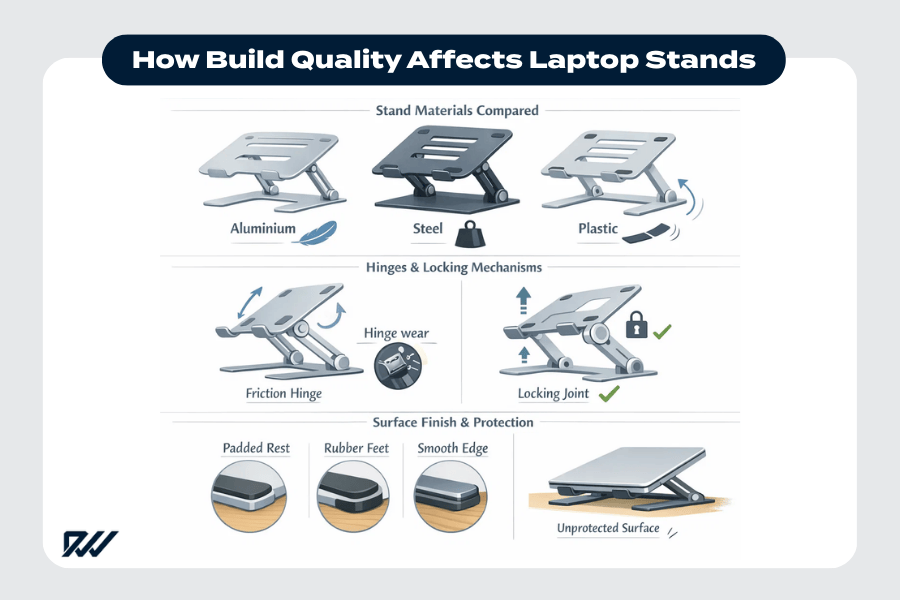
Once ergonomics and stability are sorted, build quality determines whether a stand stays reliable after months of use—or quietly degrades. Material choices affect durability, weight handling, heat behaviour, and how well a stand holds up to repeated adjustments.
The right material depends on how intensively you use the stand and how often you adjust it. Heavier construction or a “metal” label alone doesn’t guarantee better performance if the design and tolerances aren’t up to the task.
Aluminium vs. steel vs. plastic (durability, weight, heat)
Aluminium is common because it balances rigidity and weight. It resists flex well for its mass and conducts heat efficiently, which helps dissipate warmth from the laptop base. That said, thin aluminium can still bend if poorly designed.
Steel emphasises strength but adds weight. I’ve carried a steel stand in a backpack and felt the difference immediately—it’s durable, but not subtle. Plastic varies the most: high-quality composites can perform well, while cheap plastics flex, creep, or crack over time.
Material trade-offs
- Aluminium: rigid, lighter, good heat transfer; can bend if thin
- Steel: very strong, stable; heavy and less portable
- Plastic: lightweight, affordable; durability varies widely
No material is universally superior—design and thickness matter as much as the label.
Hinge/locking mechanisms and long-term wear
Adjustable stands live or die by their hinges. Common mechanisms include friction hinges, tensioned joints, and ratcheting locks. Friction hinges allow smooth movement but rely on surface resistance; ratcheting systems lock into steps but limit fine adjustment.
Over time, wear shows up as looseness. That loss doesn’t mean failure—it means the hinge is operating beyond its long-term tolerance. Wear depends heavily on how often you adjust the stand and how close you run it to its load limits. Ignoring hinge quality is one of the most common mistakes with adjustable designs.
Finish and scratch protection (laptop + desk)
Finish quality affects both appearance and surface protection. Hard edges without padding concentrate pressure, increasing the chance of scuffs on the laptop chassis. On the desk side, unprotected bases can dent softer wood or leave marks.
Protective features to look for
- Padded or rubberised laptop contact points
- Coated edges on support arms
- Non-marking feet on the base
Finishes and pads also degrade over time, so initial protection matters.
Cooling, Ventilation, and Airflow
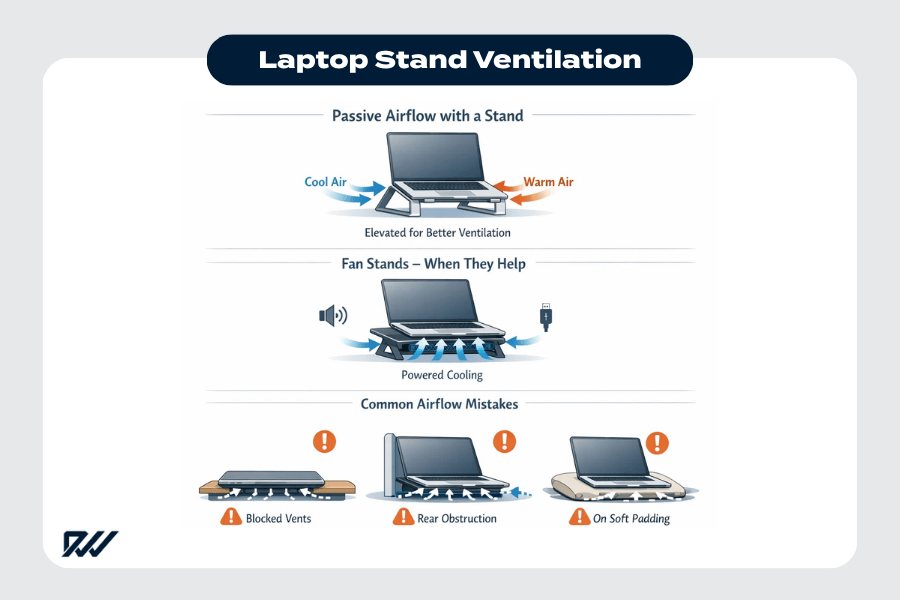
Laptop stands can influence temperature, but expectations need to be realistic. Any cooling benefit depends on airflow paths, not marketing claims.
Open or ventilated designs make the most sense if your laptop tends to run hot. Fan-based stands can help in some cases, but they add noise and draw power over USB, which may not be worth the trade-off for many setups.
Ventilated designs: when they help overheating
Ventilated stands improve passive airflow by lifting the laptop and exposing intake vents. Many laptops pull cool air from the bottom and exhaust it through the rear or sides. Elevation prevents desks from blocking those intakes.
For example, a bottom-vented laptop gains airflow when the base is fully unobstructed. Temperature drops are usually modest—often just enough to delay throttling during sustained loads. Expecting dramatic cooling improvements is a mistake; ventilation helps efficiency, not raw cooling capacity.
Fan stands: pros/cons, noise, and power needs
Fan stands add active airflow, pushing air toward the laptop’s underside. They can help in hot environments or during sustained high loads, but trade-offs matter.
Pros
- Extra airflow under heavy load
- Can reduce surface heat build-up
Cons
- Audible fan noise
- Draws power via USB
- Effectiveness varies by vent layout
Fans don’t fix poor internal cooling designs, and they won’t eliminate throttling in every case. Assuming they’re a guaranteed solution leads to disappointment.
Common airflow mistakes (blocking intake/exhaust)
Most overheating issues come from user setup errors, not stand design. Blocking airflow paths negates any benefit.
Common mistakes
- Covering bottom intake vents with solid trays
- Pressing rear exhausts against vertical supports
- Using thick pads that seal airflow gaps
Always verify that both intake and exhaust paths remain clear after setup.
Portability for Hybrid Work and Travel
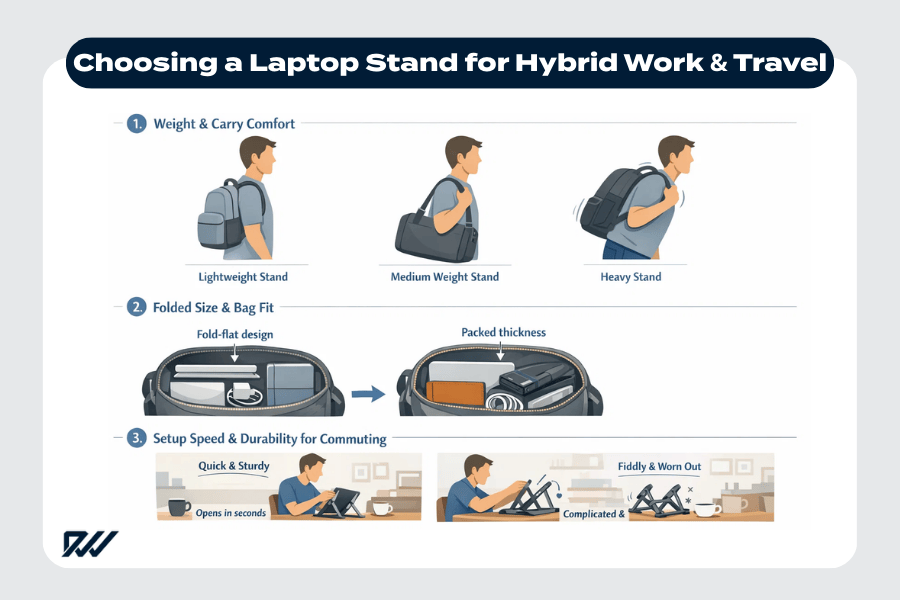
Portability isn’t just about whether a stand can travel—it’s about whether you’ll actually bring it, set it up, and keep using it without friction. For hybrid work, small compromises add up quickly.
If you travel often, fold-flat designs are usually the easiest to live with day to day. Ultra-light stands can be tempting, but they often lack the rigidity needed for typing-heavy use.
Weight ranges and what’s “portable” in real life
Portability claims often ignore how weight feels over a full commute. In practice, laptop stands fall into rough brackets:
- Under ~ 0.45 kg: very easy to carry, minimal fatigue
- 0.45–0.9 kg: noticeable but manageable in backpacks
- 0.9 kg: quickly felt during daily travel
Chasing the lowest possible weight is a mistake, though; extremely light stands often sacrifice rigidity and comfort during real work.
Folded dimensions and bag compatibility
Folded size matters as much as weight. A stand that folds flat but stays thick can press awkwardly against other gear. Slim profiles slide easily into laptop sleeves, while bulkier shapes compete with chargers and notebooks.
Consider where it will live:
- Laptop sleeve
- Backpack main compartment
- Messenger bag pocket
Length and width are usually obvious; thickness is the silent deal-breaker. Always compare folded dimensions to your actual bag, not an idealised one.
Setup speed and durability for commuting
Commuting exposes stands to repeated folding, unfolding, and packing. Setup time matters when you’re moving between meetings or cafés. Simple, intuitive mechanisms get used; complex folding patterns get skipped.
Each fold is wear. Designs that open in one or two motions last longer and reduce friction. Overly complex travel designs often look clever but become unreliable under real commuting conditions.
Extra Features Worth Paying For
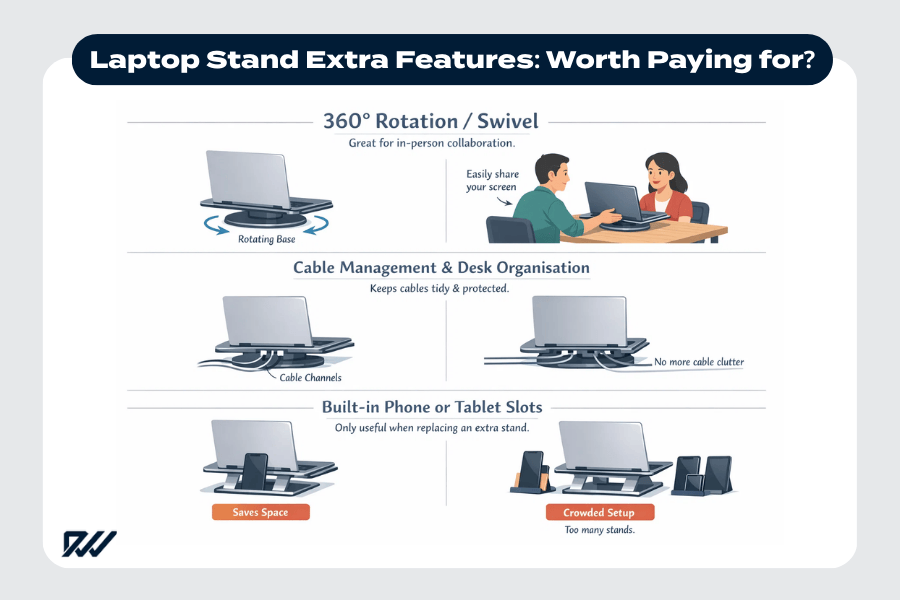
Extra features can meaningfully improve a setup—or quietly add bulk without real value. The difference comes down to whether a feature supports your actual workflow or just looks useful on paper.
It’s worth paying for features you’ll use regularly, but adding too many can complicate daily setup and get in the way rather than helping.
360° rotation / swivel for collaboration
Rotation features allow the laptop to spin without lifting the stand. This matters most in shared environments—showing a screen to a co-worker, client, or teammate across the desk. Instead of dragging the entire stand or twisting your torso, a swivel keeps the base planted while the screen moves.
In practice, this is useful for hybrid offices, classrooms, or design reviews. For solo, heads-down work, rotation adds little value and can introduce another moving part to maintain. If you rarely share your screen in person, this feature often goes unused.
Cable management and desk organisation
Cable management features guide power and peripheral cables so they don’t drape across the desk or tug on ports. Even simple channels or rear cut-outs can reduce visual clutter and accidental disconnects.
This matters most for fixed desks with external keyboards, mice, or monitors. Clean routing also reduces cable strain at the connector—a common failure point.
Common cable features include:
- Rear cable pass-throughs
- Side channels for power cords
- Clips or hooks under the platform
If you move the stand often, these features lose relevance. Desk organisation benefits scale with setup permanence.
Built-in phone/tablet slots and multi-device setups
Some stands include secondary slots for phones or tablets, aimed at multi-device workflows. This can be helpful if you regularly reference messages, notes, or secondary screens while working.
The trade-off is space and rigidity. Integrated slots reduce the usable platform area and may force awkward device angles. For users who already have dedicated phone or tablet stands, built-in slots duplicate functionality. They’re worth paying for only if they replace another accessory, not if they simply add complexity.
Choosing by Use Case
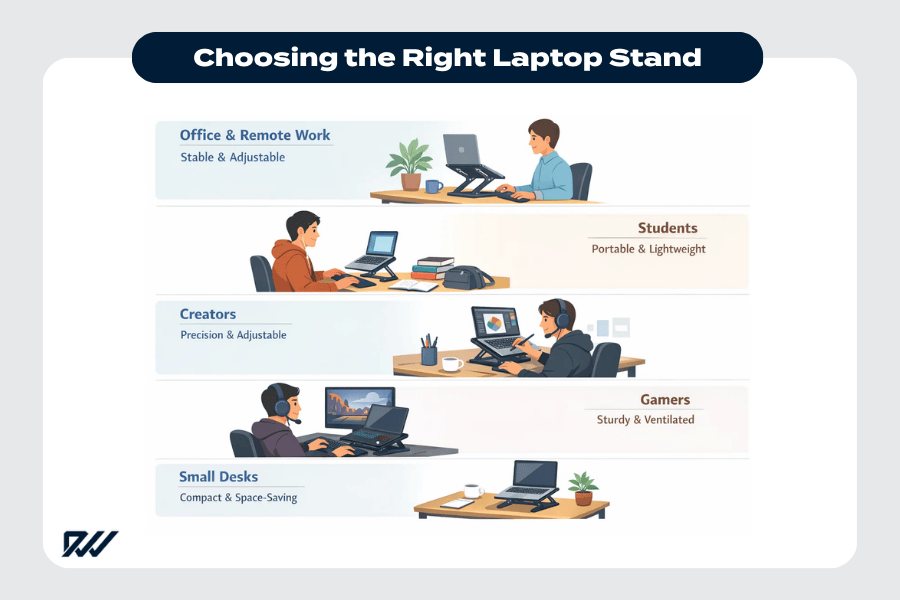
Laptop stands aren’t one-size-fits-all tools. The right choice depends less on specs and more on how and where you actually work day to day. Matching features to your primary activity helps prevent overbuying—and underperforming.
Focus on the demands of your main activity and environment rather than trying to cover every possible use case. What works well for one workflow can be a poor fit for another.
Office & remote work
For full workdays at a desk, consistency matters more than novelty. Office and remote workers benefit from stands that support repeatable positioning and feel stable across long typing sessions. The goal is reducing fatigue over hours, not quick setup or visual flair. If you frequently switch between meetings and focused work, prioritise designs that stay put once adjusted. Overly complex features tend to get ignored after the first week, while reliable positioning pays off daily.
Students
Students often work in changing environments—dorm desks, libraries, kitchen tables. A stand that adapts reasonably well across spaces without demanding perfect conditions is key. Weight and packability matter, but so does resilience to being tossed into backpacks repeatedly. Shorter study sessions mean extreme adjustability is less critical than convenience. Overbuying workstation-style stands is common and rarely justified for this use case.
Creators
Creators—designers, editors, illustrators—interact with their screens constantly. Viewing angle control and stability during fine cursor movements matter more than raw portability. Small shifts in screen position can affect precision and comfort over long creative sessions. If your workflow involves frequent screen sharing or repositioning, features that support controlled movement are more valuable than minimalist designs. Avoid stands that limit angle flexibility during detailed work.
Gamers
Gaming laptops are heavier and run hotter, and gaming sessions involve frequent input and visual intensity. Gamers should focus on stands that handle dynamic interaction without flexing under pressure. Casual browsing standards don’t apply here—rapid inputs amplify instability quickly. Stands designed only for display positioning often fall short once gameplay starts. Overgeneralising from office use is a common mistake in this category.
Small desks
On compact desks, every inch matters. A stand that looks reasonable on a large workstation can overwhelm a narrow surface, crowding input devices and limiting movement. Small-desk users should prioritise stands that elevate the screen without expanding the footprint excessively. Features that push the laptop backward or outward can create more problems than they solve. The best choice here is often the simplest one that fits cleanly within tight boundaries.
Price Guide: What You Get at Each Budget
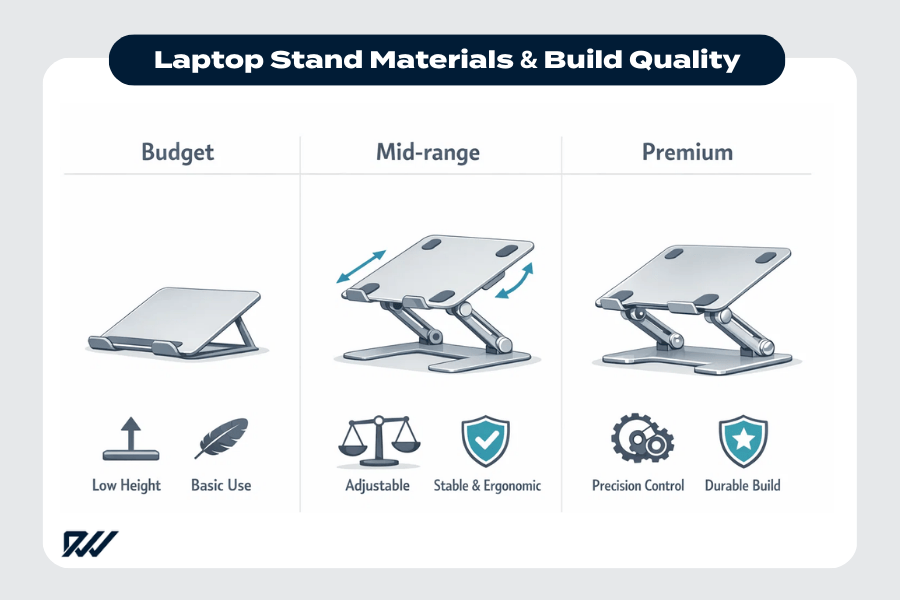
Price doesn’t buy “ergonomics” automatically—it buys range, refinement, and longevity. Understanding what typically changes as you spend more helps set expectations and avoids paying for polish without real function.
Spend based on how much adjustability you actually need and how heavily you’ll use the stand day to day. Higher prices aren’t justified by aesthetics or finish alone if they don’t improve how the stand works.
Budget
Budget stands focus on basic elevation with minimal complexity. Expect fixed heights or very limited adjustment, simpler construction, and fewer moving parts. They usually solve one problem—raising the screen slightly—but don’t adapt well across different desks or seating positions.
These stands work best for light, occasional use or as an entry point if you’re unsure what adjustments you need yet. Long-term durability and fine-tuning are the main compromises.
Mid-range
Mid-range options are where functional ergonomics usually start. This tier typically adds meaningful height and angle adjustment, better stability under typing, and more reliable locking mechanisms. Adjustments feel more controlled, and stands are designed to be repositioned without constant re-tightening.
For most remote workers and students spending hours at a desk, this range offers the best balance of usability and longevity. You’re paying for flexibility that actually gets used.
Premium
Premium stands focus on refinement rather than basic capability. You’ll see smoother adjustment, tighter tolerances, better long-term wear resistance, and thoughtful details that reduce friction in daily use. These stands are designed for frequent adjustments and long service life.
What you don’t always get is a dramatic ergonomic leap. If a mid-range stand already meets your height and angle needs, paying more mainly improves experience and durability—not posture outcomes.
At-a-glance expectations by budget
| Budget Level | Typical Adjustability | Stability & Longevity | Best For |
| Budget | Minimal or fixed | Adequate for light use | Short sessions, basic elevation |
| Mid-range | Broad height & angle | Good for daily typing | Most remote work setups |
| Premium | Fine-grained, smooth | Excellent long-term wear | Heavy daily use, frequent adjustments |
The key is matching spend to function, not finish.
Setup Tips for the Best Ergonomic Result
Even the right stand can underperform if it’s set up poorly. Small placement mistakes create strain, instability, or friction that users often blame on the stand itself. These setup steps ensure you get the ergonomic benefit you paid for.
Desk setup checklist
Use this quick checklist immediately after placing your stand:
- Screen cantered directly in front of you (no neck rotation)
- Laptop fully supported on the platform—no corner overhang
- Stand base fully resting on the desk (no edge contact)
- Screen height set before adding accessories
- Chair adjusted so feet rest flat on the floor
A common mistake is adjusting the stand to “look right” instead of checking alignment once seated. Always finalise adjustments from your working posture, not from above.
Keyboard/mouse positioning
Once the laptop is elevated, input devices determine whether the setup actually works. Typing on a raised laptop often pulls shoulders upward and bends wrists back—issues that show up as fatigue first, pain later.
Best practice:
- Keyboard positioned so elbows sit near 90°
- Mouse at the same height and distance as the keyboard
- Wrists neutral, not resting on hard desk edges
I’ve felt shoulder tension creep in quickly when the keyboard sat too high, even with a perfectly positioned screen. Small height mismatches matter more than most people expect.
Cable placement
Cables influence posture more than they seem. Poor routing can tug the laptop forward, block ventilation, or force awkward desk placement.
Check for:
- Power cables with slack (no downward pull)
- Monitor cables routed without sharp bends
- No cables pressing against stand hinges or vents
After setup, gently move the laptop through its adjustment range to confirm nothing snags or resists. Clean cable paths preserve both ergonomics and stability.
Common Mistakes to Avoid
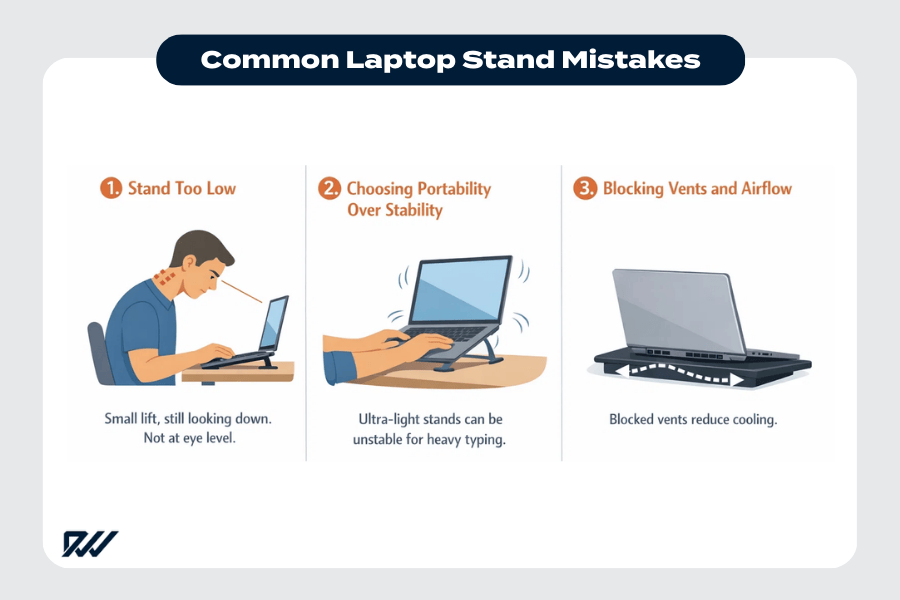
Most laptop stand regrets come from a few predictable mistakes. They’re easy to make, especially when focusing on specs instead of daily use. Avoiding these issues saves money, frustration, and discomfort.
Stand too low
The most common error is choosing a stand that barely raises the screen. A lift of an inch or two may look helpful, but it often leaves the screen below eye level once you sit and start working.
If you still have to tilt your head downward to see the top of the screen, the stand isn’t doing its job. Many people mistake any elevation for ergonomic improvement, when meaningful height is what actually matters.
Portability over stability
Another frequent mistake is prioritising portability above all else. Ultra-light, minimalist stands are appealing—but they often flex, wobble, or shift under real typing loads. During daily work, that instability becomes distracting fast.
If you type heavily, stability matters more than saving a few ounces in your bag.
Blocking vents
Vent blocking is a silent problem that shows up as heat and performance drops. Some users place laptops on solid trays or push them against back supports without checking airflow paths.
Common errors include:
- Covering bottom intake vents
- Pressing rear exhausts against vertical edges
- Letting cables obstruct vent openings
Always confirm that both intake and exhaust vents remain clear after setup—especially on thicker or performance-focused laptops.
Quick Recommendation Checklist
Best for ergonomics
- Reaches eye level while seated
- Offers incremental height and angle adjustment
- Works well with external keyboard and mouse
Best for travel
- Folds flat with low packed thickness
- Weighs under ~ 0.7 kg
- Simple, fast setup with minimal moving parts
Best for cooling
- Open or ventilated platform
- No contact blocking bottom intake vents
- Rear clearance for exhaust airflow
Use this checklist as a final filter before buying—it keeps the focus on function, not features.
FAQs
Are laptop stands actually ergonomic?
A laptop stand is ergonomic only if it raises the screen to eye level while allowing proper input positioning. The stand improves viewing posture, but typing ergonomics usually require an external keyboard and mouse set up. Without that, benefits are partial and limited to the neck—not wrists or shoulders.
How high should a laptop stand raise my screen?
For most seated desks, the screen needs to rise 12–25 cm so your eyes land on the upper third of the display. Smaller lifts often look helpful but still leave you tilting your head downward during real work sessions.
Can I type directly on a laptop stand?
You can, but it’s not ideal for long sessions. Typing on an elevated laptop increases wrist extension and shoulder tension. It’s acceptable for short tasks, but for daily work, external input devices are best practice.
Do laptop stands help with overheating?
They can help passively by improving airflow if bottom vents are exposed. Stands don’t actively cool laptops unless they include fans, and even then, temperature reductions are usually modest and workload-dependent.
Are portable laptop stands stable enough for daily use?
Portable stands are stable enough for light to moderate typing, but ultra-light designs often flex under sustained input. For typing-heavy daily work, prioritise stability over minimal weight—especially if the stand stays mostly in one place.
Will one laptop stand work for home, office, and travel?
Rarely. Home setups favour stability and adjustment range, while travel favours fold-flat designs and low weight. Trying to cover every scenario with one stand often leads to compromises that frustrate daily use.