- Home Working
- In the Workplace
- Article
Mouse vs Trackpad: Which Is Better for Work, Gaming, and Productivity?
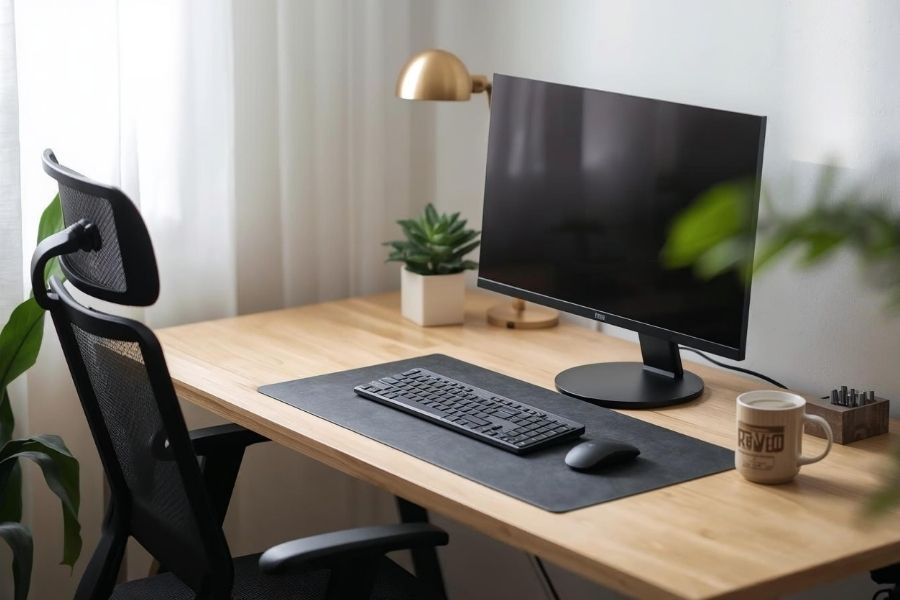
What Is the Difference Between a Mouse and a Trackpad?
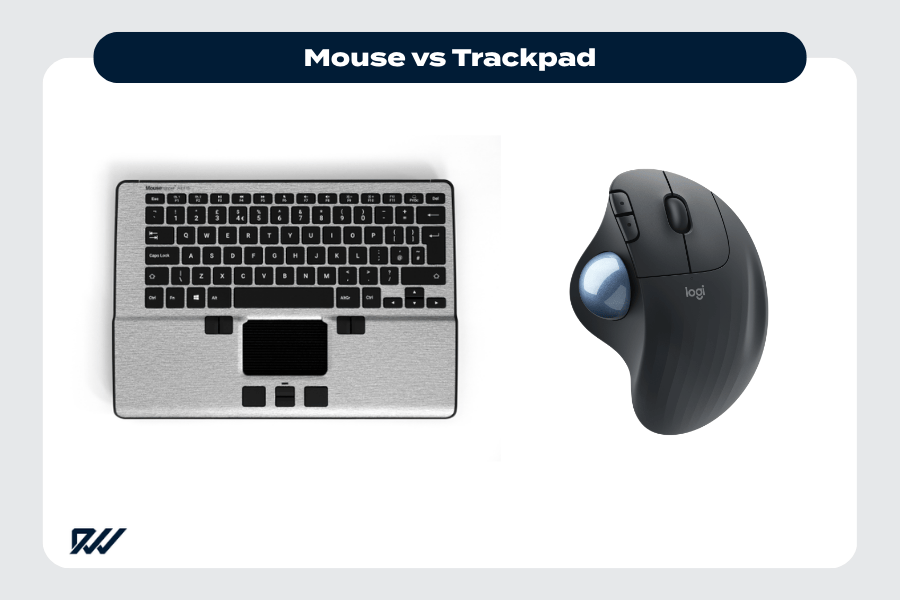
A visual comparison of a trackpad and a mouse as computer input devices. The main difference between a mouse and a trackpad lies in how you interact with your computer. A mouse is a separate, hand-held device that you move across a surface to control the cursor, while a trackpad (also known as a touchpad) is a touch-sensitive surface, usually built into laptops, that responds to finger movements and gestures.
Both input devices perform the same core function—moving the on-screen pointer and enabling clicks, scrolling, and selections—but they do so in very different ways. These differences affect speed, accuracy, comfort, portability, and overall user experience, making each option better suited to certain tasks and working styles.
Understanding how each device works helps you decide which is best for your needs, whether you are working, gaming, designing, or simply browsing the web.
How a Computer Mouse Works
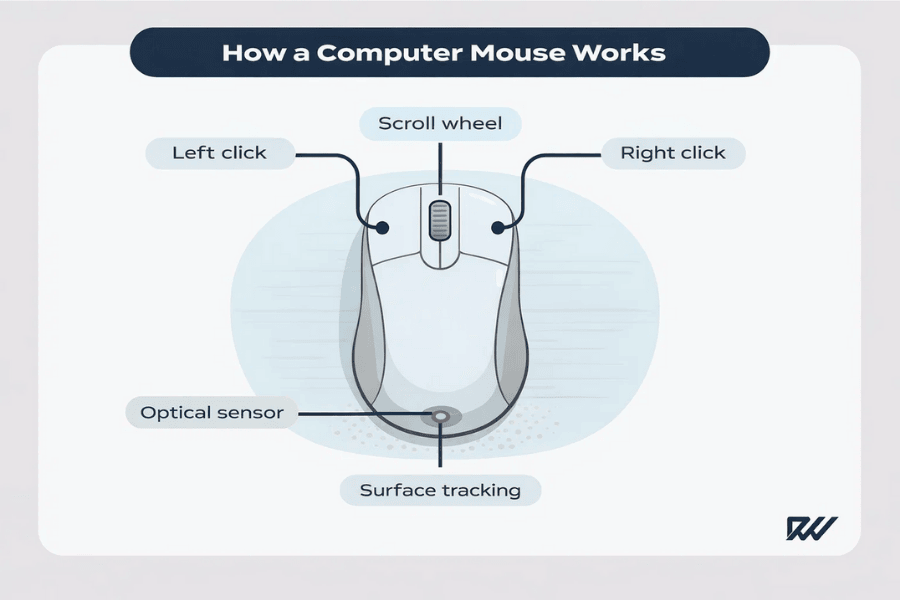
An illustrated diagram explaining the main components of a computer mouse and how they function.
A computer mouse tracks physical movement across a flat surface and translates it into cursor movement on the screen. Most modern mice use optical or laser sensors to detect motion, removing the need for older mechanical components such as rollers.
When you move the mouse, the sensor reads changes in position thousands of times per second, allowing for precise and responsive cursor control. Buttons on the mouse are used for clicking, while a scroll wheel enables vertical (and sometimes horizontal) scrolling.
Key features of a computer mouse include:
- Optical or laser sensor for accurate tracking
- Left and right buttons for primary and secondary clicks
- Scroll wheel for navigating long pages or documents
- Optional extra buttons for shortcuts or custom commands
Because a mouse relies on physical movement, it typically requires a desk or mouse mat. This design makes it especially effective for tasks that demand high precision, such as graphic design, video editing, and gaming.
How a Trackpad Works
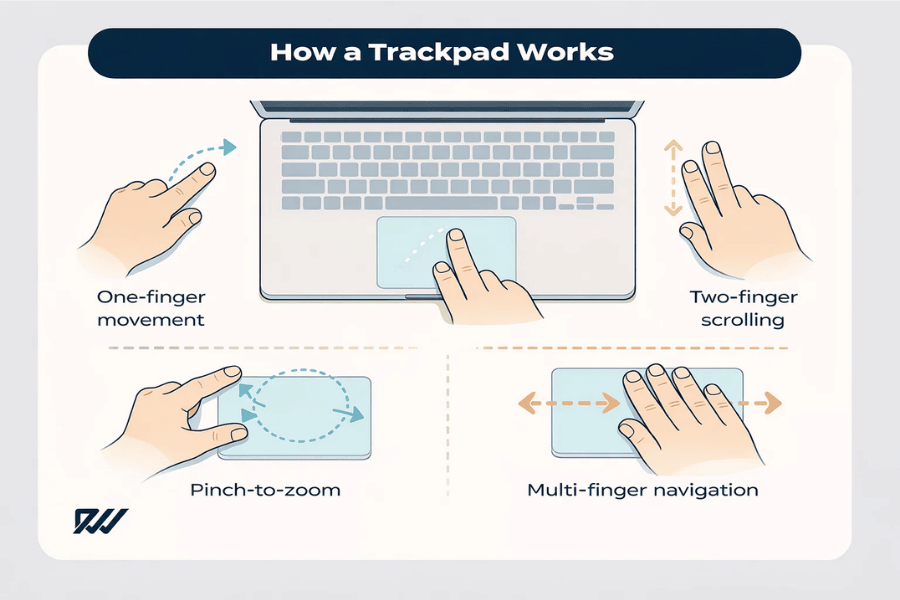
Diagram explaining common gestures used to control a laptop trackpad.
A trackpad is a flat, touch-sensitive surface that detects finger movements using capacitive sensors. Instead of moving a device across a surface, you slide one or more fingers across the pad to control the cursor.
Modern trackpads support multi-touch gestures, allowing users to perform actions such as scrolling, zooming, switching applications, and opening menus with simple finger movements. Clicking is usually achieved by pressing down on the pad or tapping the surface.
Common trackpad functions include:
- One-finger movement for cursor control
- Tapping or pressing for clicks
- Two-finger scrolling and right-clicking
- Multi-finger gestures for navigation and multitasking
Trackpads are most commonly found on laptops and are designed for portability and convenience, removing the need to carry an external device. However, some users find them less precise than a mouse for detailed or prolonged work.
Key Functional Differences at a Glance
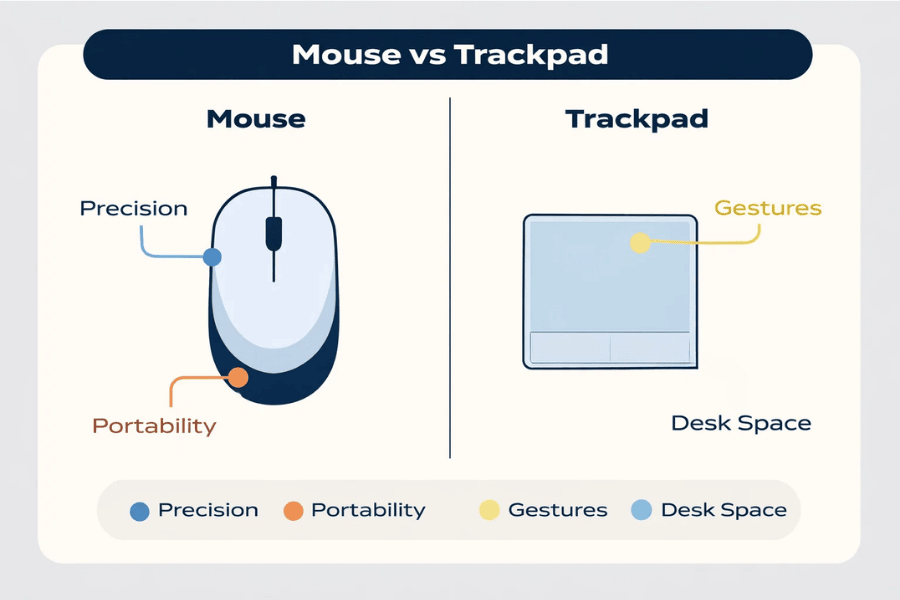
A simple visual comparison showing key strengths of a mouse versus a trackpad.
While both devices serve the same purpose, their functionality differs in ways that can significantly impact how you work. A mouse emphasises precision and control, whereas a trackpad focuses on gestures and compact design.
At a functional level, the main differences include:
- Movement method: Mouse uses physical movement; trackpad uses finger gestures
- Precision: Mouse generally offers greater accuracy
- Gestures: Trackpad supports multi-touch gestures; mouse relies on buttons and wheels
- Portability: Trackpad is built-in; mouse is an external accessory
These functional differences explain why many users choose to use both a mouse and a trackpad, depending on the task at hand. In the following sections, we’ll explore how these differences affect productivity, comfort, and performance in real-world scenarios.
Mouse vs Trackpad: Pros and Cons
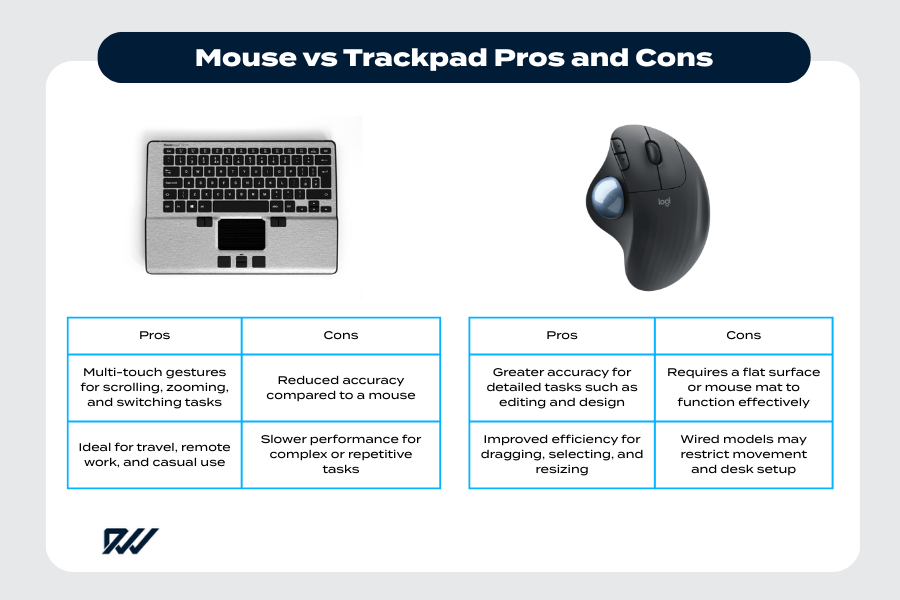
A detailed comparison of the pros and cons of using a trackpad versus a mouse.
When comparing a mouse and a trackpad, the advantages and disadvantages of each become clear once you consider how they are used in everyday computing. While both devices are capable of handling basic tasks, their strengths differ significantly depending on accuracy requirements, working environment, and duration of use.
A mouse tends to prioritise control and precision, making it ideal for extended or detailed work. In contrast, a trackpad focuses on convenience and portability, offering quick access and gesture-based navigation. Understanding these pros and cons will help you choose the option that best suits your workflow and physical comfort.
Advantages of Using a Mouse
A mouse offers a high level of precision and responsiveness, which is why it remains the preferred input device for many professionals and power users. Its physical movement allows for fine-grained cursor control, making it easier to perform detailed actions accurately and efficiently.
Modern mice often include additional features such as adjustable sensitivity, programmable buttons, and ergonomic designs that enhance both performance and comfort.
Key advantages of using a mouse include:
- Greater accuracy for detailed tasks such as editing and design
- Faster and more controlled cursor movement
- Improved efficiency for dragging, selecting, and resizing
- Customisable buttons for shortcuts and advanced commands
These benefits make a mouse particularly well suited to long working sessions, where consistent control can improve productivity and reduce frustration.
Disadvantages of Using a Mouse
Despite its precision, a mouse does come with certain drawbacks that may affect usability in specific situations. Because it is a separate device, it requires a suitable surface and additional space, which is not always available.
Prolonged mouse use can also contribute to discomfort if posture or positioning is poor, particularly in the wrist and forearm.
Common disadvantages of using a mouse include:
- Requires a flat surface or mouse mat to function effectively
- Less convenient when travelling or working in confined spaces
- Can contribute to wrist, hand, or shoulder strain
- Wired models may restrict movement and desk setup
These limitations mean that while a mouse excels at desk-based work, it is not always the most practical choice for mobile users.
Advantages of Using a Trackpad
A trackpad is designed to offer immediate access and ease of use, especially for laptop users. As it is built directly into the device, it eliminates the need for external hardware and allows for seamless use in almost any environment.
Trackpads also support a wide range of gestures that can speed up navigation and multitasking once mastered.
Key advantages of using a trackpad include:
- Integrated design with no additional equipment required
- Multi-touch gestures for scrolling, zooming, and switching tasks
- Ideal for travel, remote work, and casual use
- Minimal space requirements
For users who value portability and simplicity, a trackpad provides a clean and efficient way to interact with a computer.
Disadvantages of Using a Trackpad
Although convenient, trackpads are not always the best option for precision-heavy or extended tasks. The lack of physical separation between movement and clicking can make detailed actions more difficult to perform accurately.
Some users also experience fatigue during long sessions, particularly when repetitive gestures are required.
Common disadvantages of using a trackpad include:
- Reduced accuracy compared to a mouse
- Slower performance for complex or repetitive tasks
- Increased finger and wrist fatigue during prolonged use
- Limited suitability for gaming and creative work
For these reasons, many users choose to rely on a trackpad only when mobility is essential, switching to a mouse whenever a stable workspace is available.
Mouse vs Trackpad for Productivity
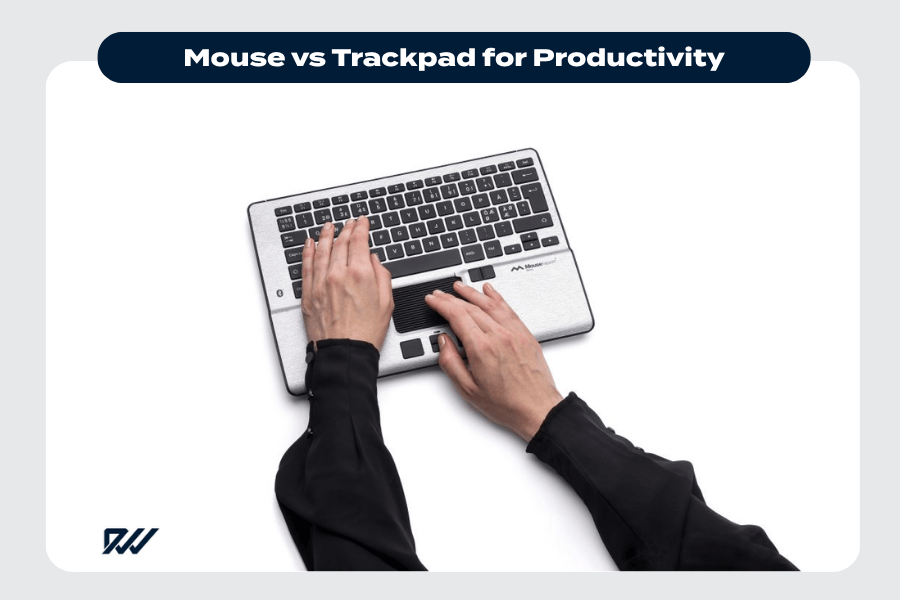
Using a trackpad for everyday productivity tasks on a laptop.
Productivity is one of the most important factors when choosing between a mouse and a trackpad. While both devices allow you to complete everyday tasks, the way they influence speed, accuracy, and efficiency can vary significantly depending on how you work.
For short, casual sessions, the difference may feel minimal. However, during long working hours or when handling complex tasks, the choice between a mouse and a trackpad can have a noticeable impact on focus, comfort, and overall output.
Which Is Faster for Everyday Tasks?
Speed is often determined by how quickly you can move the cursor, make selections, and switch between actions. A mouse generally allows for faster and more consistent movement, particularly when navigating large screens or working across multiple monitors.
Trackpads rely on finger gestures, which can be efficient for simple actions but may slow down repetitive or precision-based tasks.
Key speed-related differences include:
- Faster cursor travel across large displays with a mouse
- Quicker selection and dragging actions using physical buttons
- Gesture shortcuts on trackpads for basic navigation
- Reduced efficiency on trackpads during repetitive workflows
While trackpads can feel quick for light use, a mouse typically offers better speed control during sustained work.
Precision and Accuracy Compared
Precision plays a major role in productivity, especially for tasks that require careful alignment or detailed selection. A mouse provides a higher degree of control, allowing small and accurate movements that are difficult to replicate on a trackpad.
Trackpads, while responsive, can be more prone to accidental movements or mis-clicks, particularly when working with small interface elements.
Precision differences between the two include:
- Greater control over fine cursor movements with a mouse
- Easier text selection and object alignment
- Higher chance of overshooting targets on a trackpad
- Less consistency during long sessions
For work that demands accuracy, such as editing documents or managing spreadsheets, a mouse often improves efficiency.
Multitasking and Gesture Support
Trackpads excel when it comes to gesture-based multitasking. Actions such as switching between applications, opening task views, or zooming can often be performed more quickly with multi-finger gestures.
A mouse, on the other hand, depends on keyboard shortcuts or additional buttons to achieve similar results.
Multitasking considerations include:
- Trackpad gestures for switching apps and desktops
- Smooth scrolling and zooming with multi-touch support
- Mouse reliance on keyboard combinations
- Custom mouse buttons for advanced users
Ultimately, productivity depends on how well the device integrates into your workflow. Some users benefit from the precision of a mouse combined with the convenience of trackpad gestures, using both to maximise efficiency.
Mouse vs Trackpad for Work and Professions
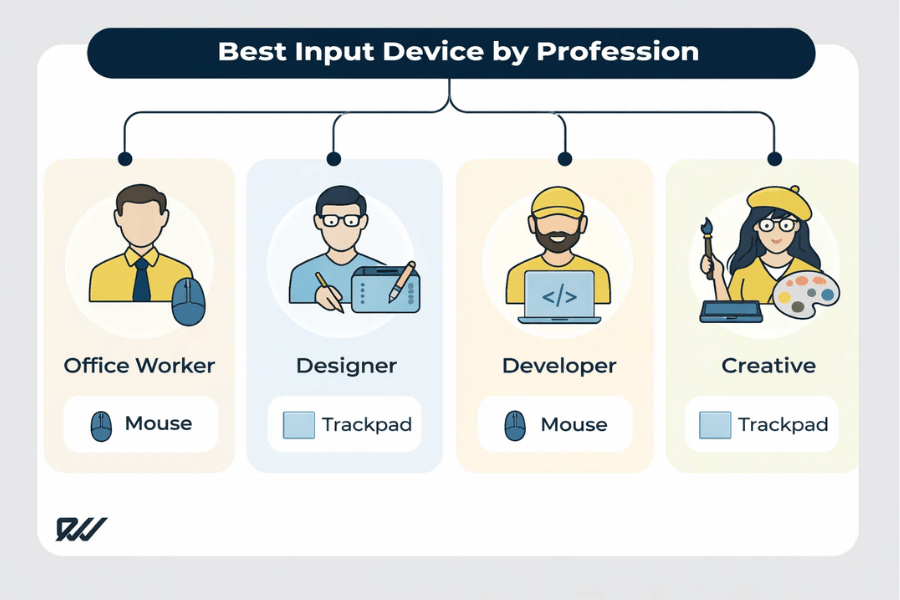
An infographic illustrating which input device is best suited to different professions.
Different professions place different demands on input devices, which means the choice between a mouse and a trackpad often depends on the type of work being performed. While some roles benefit from speed and gesture-based navigation, others require precision and sustained control throughout the working day.
Understanding how each device performs in professional environments can help you choose the option that supports both productivity and comfort, particularly during long hours at a desk.
Mouse vs Trackpad for Office Work
For general office tasks such as writing emails, managing documents, and using spreadsheets, both a mouse and a trackpad are capable options. However, a mouse often provides greater efficiency when working with detailed interfaces or switching frequently between windows.
Trackpads remain popular with laptop users who value simplicity and portability, especially in hybrid or remote working setups.
Office work considerations include:
- Faster spreadsheet navigation with a mouse
- Easier text selection and cell editing
- Trackpad gestures for switching applications
- Reduced desk clutter when using a trackpad
For desk-based office work, many users find a mouse more comfortable over long periods, while trackpads suit short or mobile sessions.
Mouse vs Trackpad for Designers and Creatives
Creative professionals often rely heavily on precision and fine control, particularly when working with visual elements. A mouse offers more consistent accuracy for tasks such as photo editing, layout design, and video timelines.
While trackpads support gestures that can aid navigation, they may lack the control required for detailed creative work.
Key considerations for creatives include:
- Precise cursor control for editing and design
- Better control over timelines and layers
- Reduced risk of accidental movements
- Trackpad gestures for zooming and panning
As a result, most designers and creatives prefer a mouse or specialised input device, using a trackpad only for basic navigation.
Mouse vs Trackpad for Developers and Programmers
For developers and programmers, efficiency and comfort are crucial, as coding often involves long hours of focused work. A mouse can make it easier to navigate complex interfaces, manage files, and interact with development tools.
Trackpads, however, can be effective when paired with keyboard shortcuts, particularly for users who prefer minimal movement between devices.
Considerations for developers include:
- Accurate cursor placement in code editors
- Faster file navigation with a mouse
- Trackpad gestures for workspace switching
- Reduced hand movement when using shortcuts
Ultimately, many developers choose to use a mouse at a desk while relying on a trackpad when working remotely or on the move.
Mouse vs Trackpad for Gaming

A gamer celebrating during gameplay, illustrating the discussion of using a mouse or trackpad for gaming.
Gaming places some of the highest demands on input devices, requiring speed, accuracy, and consistent control. While both a mouse and a trackpad can technically be used for gaming, their performance differs greatly depending on the type of game and level of play.
For casual gaming, the difference may be less noticeable. However, for fast-paced or competitive games, the choice between a mouse and a trackpad can have a significant impact on responsiveness and overall performance.
Why Gamers Prefer a Mouse
A mouse is widely considered the best input device for gaming due to its precision and responsiveness. It allows players to make rapid, accurate movements that are essential in genres such as first-person shooters and real-time strategy games.
Gaming mice are also designed with features that enhance performance, including adjustable sensitivity and programmable buttons.
Key reasons gamers prefer a mouse include:
- High precision for aiming and targeting
- Faster response times and smoother tracking
- Customisable sensitivity (DPI) settings
- Additional buttons for in-game actions
These advantages make a mouse the standard choice for serious and competitive gamers.
Can You Game Effectively with a Trackpad?
Trackpads can be used for gaming, particularly for slower-paced or turn-based titles. Strategy games, puzzle games, and casual simulations may be playable without significant drawbacks.
However, trackpads struggle with fast reactions and continuous movement, which can limit performance in more demanding games.
Trackpad gaming considerations include:
- Limited precision for rapid movements
- Higher chance of missed inputs
- Gestures may interfere with gameplay
- Suitable mainly for casual or turn-based games
As a result, trackpads are generally viewed as a temporary solution rather than a dedicated gaming input device.
Response Time and Control Differences
Response time and control are critical in gaming, where even small delays can affect outcomes. A mouse provides direct, physical input that translates immediately to on-screen movement, offering a high level of control.
Trackpads rely on touch input and software interpretation, which can introduce slight delays or inconsistencies.
Key control differences include:
- Faster and more reliable response from a mouse
- Greater consistency during long gaming sessions
- Reduced accuracy with trackpads under pressure
- Better muscle memory development with a mouse
For gamers seeking optimal performance, a mouse remains the clear choice, particularly when precision and speed are essential.
Ergonomics and Comfort: Mouse vs Trackpad
Ergonomics play a crucial role in long-term comfort and health, particularly for people who spend many hours working at a computer. The choice between a mouse and a trackpad can influence posture, hand positioning, and the risk of strain-related injuries.
While both devices can be used comfortably with good habits, their designs encourage different movement patterns, which may affect how your hands, wrists, and arms feel over time.
Wrist and Hand Strain Considerations
A mouse requires continuous movement of the hand and wrist, which can lead to strain if the device is poorly positioned or used for long periods without breaks. However, an ergonomically designed mouse can help reduce unnecessary tension.
Trackpads involve smaller, repetitive finger movements, which may cause fatigue in the fingers or wrist, particularly during extended use.
Strain-related considerations include:
- Wrist movement and rotation when using a mouse
- Finger-intensive gestures on a trackpad
- Reduced strain with ergonomic mouse designs
- Potential discomfort during prolonged trackpad use
The risk of strain largely depends on posture, technique, and duration of use rather than the device alone.
Posture and Long-Term Comfort
Posture is strongly influenced by how your hands are positioned in relation to your keyboard and screen. A mouse allows you to place your hand in a more natural position beside the keyboard, which can support better arm alignment.
Trackpads are typically positioned below the keyboard, which may cause users to angle their wrists or lean forward more than necessary.
Posture considerations include:
- Natural arm placement with a mouse
- Centralised hand position when using a trackpad
- Shoulder tension caused by poor desk setup
- Increased comfort with adjustable workspaces
Over time, maintaining a neutral posture is essential for reducing discomfort and improving long-term comfort.
Which Is Better for RSI Prevention?
Repetitive strain injury (RSI) can develop from repeated movements and poor ergonomics. A mouse, particularly an ergonomic or vertical model, may help reduce strain by promoting more natural hand positioning.
Trackpads can contribute to RSI if gestures are repeated frequently without breaks, especially when combined with poor posture.
RSI prevention considerations include:
- Ergonomic mouse designs for reduced wrist strain
- Regular breaks regardless of device choice
- Proper desk and chair height
- Alternating between mouse and trackpad use
For many users, switching between a mouse and a trackpad throughout the day can help minimise repetitive movements and reduce the risk of strain-related issues.
Portability and Convenience

A professional on the move, representing portability and convenience when using technology away from a desk.
Portability and convenience are key considerations for users who work across different locations or rely on laptops for daily tasks. The choice between a mouse and a trackpad can significantly affect how easy it is to work in varied environments such as cafés, trains, or shared workspaces.
While a mouse often offers better control, a trackpad provides immediate accessibility, making each device more suitable for different working conditions.
Trackpad Advantages for Laptops and Travel
Trackpads are built directly into laptops, making them the most convenient option for users who are frequently on the move. There is no need to carry additional equipment, which reduces setup time and clutter.
They are particularly useful in confined spaces where using a mouse may be impractical.
Trackpad benefits for portability include:
- No extra hardware required
- Easy to use in small or crowded spaces
- Faster setup when working on the move
- Lightweight and always available
For travellers and remote workers, a trackpad provides a reliable and space-efficient solution.
Mouse Portability and Wireless Options
Although a mouse is an external device, modern designs have improved portability significantly. Wireless and compact mice are easy to transport and can be used on a wide range of surfaces.
However, carrying a mouse still adds an extra item to manage when travelling.
Mouse portability considerations include:
- Compact and foldable mouse designs
- Wireless connectivity via Bluetooth or USB receivers
- Requires storage space in a bag
- May need batteries or charging
For users who prioritise performance, the added inconvenience of carrying a mouse is often outweighed by its benefits.
Desk Space Requirements
Desk space plays an important role in determining which device is more practical. A mouse requires a clear area to move freely, while a trackpad functions within a fixed, compact space.
This difference can be important in smaller work environments.
Desk space considerations include:
- Mouse requires room for movement
- Trackpad fits easily into tight setups
- Mouse mats may add to space needs
- Trackpads reduce desktop clutter
Ultimately, the best choice depends on how much space you have available and how frequently you move between locations.
Mouse vs Trackpad: Which Should You Choose?
Choosing between a mouse and a trackpad ultimately depends on how you use your computer, where you work, and what you value most in an input device. While both options are capable, they each excel in different situations and for different users.
Rather than viewing this as a one-or-the-other decision, many people find that using both devices at different times offers the best balance of performance, comfort, and convenience.
Best Choice for Laptop Users
Laptop users often rely heavily on trackpads due to their built-in design and immediate accessibility. For everyday tasks such as browsing, writing, and light multitasking, a trackpad can be more than sufficient.
However, when a laptop is used as a primary workstation, adding a mouse can significantly improve efficiency and comfort.
Considerations for laptop users include:
- Trackpad convenience for mobile use
- Mouse precision for desk-based work
- Reduced setup time with a trackpad
- Improved comfort with a mouse during long sessions
For many laptop users, switching between a trackpad and a mouse depending on location provides the most flexibility.
Best Choice for Desktop Users
Desktop users typically benefit more from a mouse, as desktops are designed for stationary use with ample desk space. A mouse offers greater accuracy and control, making it better suited for productivity, creative work, and extended use.
Trackpads are rarely used as a primary input device on desktops but may still serve as a supplementary option.
Desktop user considerations include:
- Greater precision with a mouse
- Comfortable positioning alongside a keyboard
- Better support for professional workflows
- Limited need for portability
For most desktop setups, a mouse remains the most practical and efficient choice.
When Using Both Makes Sense
Using both a mouse and a trackpad can offer the advantages of each without their individual limitations. Some users prefer a mouse for focused work and a trackpad for gestures and quick navigation.
This hybrid approach can reduce repetitive movements and improve overall comfort.
Situations where using both works well include:
- Switching between desk and mobile work
- Combining precision with gesture-based navigation
- Reducing strain through varied movement
- Adapting to different tasks quickly
For many users, this combination delivers the most balanced experience.
Frequently Asked Questions About Mouse vs Trackpad
This section addresses common questions users have when deciding between a mouse and a trackpad, helping clarify remaining uncertainties and improve search visibility.
Is a mouse better than a trackpad?
A mouse is generally better for tasks that require precision, speed, and prolonged use. Trackpads are more convenient for portability and casual tasks but may not match a mouse in accuracy.
Do trackpads reduce productivity?
Trackpads do not necessarily reduce productivity for light tasks. However, for complex or repetitive work, many users find that a mouse improves efficiency and comfort.
Can a trackpad replace a mouse entirely?
A trackpad can replace a mouse for basic computing needs. For professional, creative, or gaming tasks, a mouse is often still the better option.
Final Verdict: Mouse vs Trackpad
Both a mouse and a trackpad are effective input devices, but they serve different purposes. A mouse excels in precision, comfort, and performance, particularly for desk-based and professional use. A trackpad offers convenience, portability, and intuitive gesture support, making it ideal for mobile computing.
The best choice depends on your workflow, environment, and personal preferences. In many cases, using both devices provides the most flexible and comfortable solution.