Introduction to Single vs Dual Monitor Setups
Your screen setup has a direct impact on how you work, study and relax. The single vs dual monitor debate isn’t just about having more space — it affects productivity, focus, posture and overall comfort throughout the day.
Whether you’re replying to emails, editing videos or gaming, the way your display is arranged shapes your workflow.
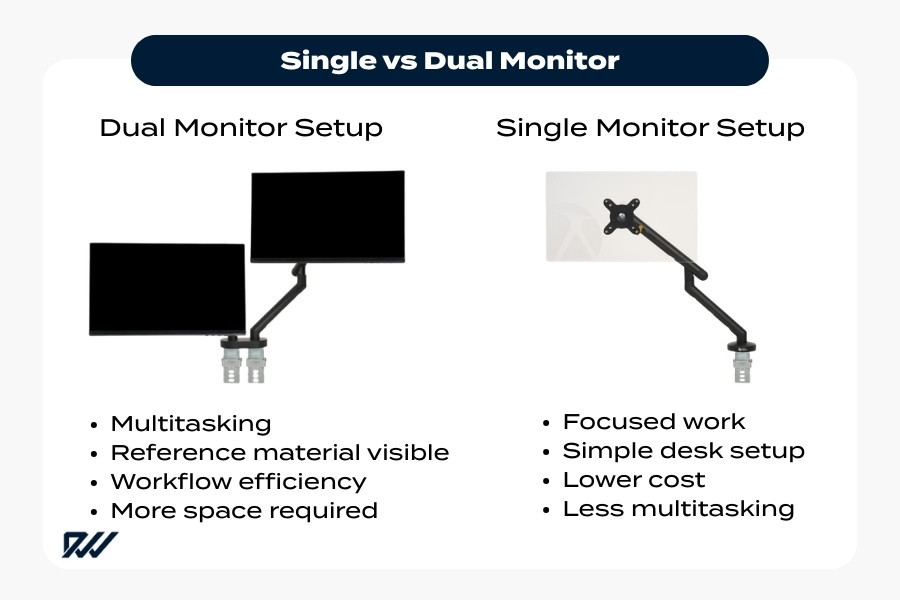
A single monitor setup uses one display to handle all tasks, often paired with a laptop or desktop. A dual monitor setup adds a second screen, allowing you to view multiple apps at once without constantly switching windows.
As remote work, online learning and digital creativity grow, more people are exploring whether an extra screen could make everyday tasks easier.
However, there’s no one-size-fits-all solution. The right choice depends on your desk setup, budget, the type of work you do and how much multitasking you actually need.
This guide breaks down both options so you can decide what fits your routine — starting with the single monitor setup.
Why Monitor Choice Matters for Productivity and Comfort
Your monitor arrangement influences how often you switch between tasks, how long you stay focused and even how your body feels after hours at a desk. Limited screen space can increase window juggling, while more space can reduce friction but sometimes introduce distraction.
Display size, positioning and viewing distance also affect eye strain and posture. A well-planned setup — whether single, dual or even an ultrawide monitor — can create a smoother workflow and a more comfortable working environment.
Who This Comparison Is For
This comparison is designed for anyone building or improving a digital workspace, including:
- Remote workers managing multiple apps
- Students balancing research and writing
- Gamers considering performance and immersion
- Developers handling code, documentation and testing
- Creatives working with timelines, design tools or references
- Casual users who simply want a cleaner desk setup
No matter your experience level, understanding the trade-offs helps you choose a setup that supports your daily tasks rather than complicates them.
What Is a Single Monitor Setup?
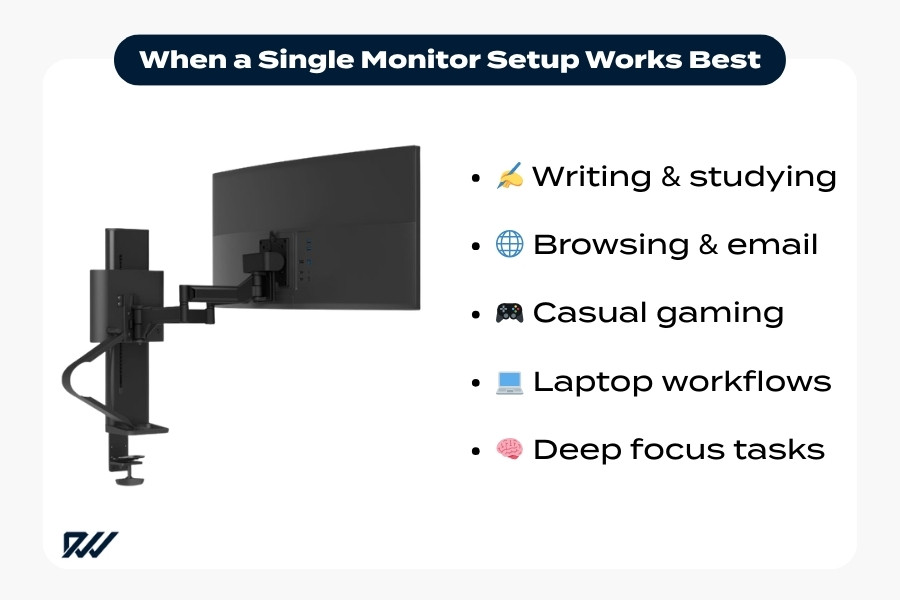
A single monitor setup uses one display as your primary workspace. This could be a desktop monitor, a laptop screen or a larger ultrawide monitor that replaces multiple displays with one continuous canvas.
One screen works particularly well for people who prefer a simple desk setup or mainly focus on one task at a time. It’s common among students, writers, office workers and gamers who prioritise immersion rather than heavy multitasking.
While the conversation around productivity often highlights multiple screens, a single monitor can still be highly effective when paired with good window management and thoughtful organisation.
Typical Use Cases
A single monitor setup is often ideal for:
- Writing and research
- Web browsing and studying
- Email and light office work
- Streaming and media consumption
- Casual gaming
- Portable laptop-based workflows
These tasks typically don’t require multiple apps visible simultaneously, making one screen sufficient.
Advantages of Using One Screen
Using a single display offers several practical benefits:
- Lower cost — only one monitor to buy and power
- Simplicity — fewer cables, easier setup and less configuration
- Space saving — ideal for small desks or shared environments
- Better focus — fewer visible distractions when working on one task
For many users, this minimal approach supports concentration and keeps the workspace tidy.
Limitations to Consider
The main drawback of a single monitor setup is limited workspace. You may need to switch between windows more frequently, which can slow down workflows that rely on referencing multiple documents or tools.
Screen scaling can also become an issue when working with dense interfaces, as fitting everything onto one display sometimes reduces readability. Over time, constant task switching may impact productivity — which is why many users eventually explore a dual monitor setup as their workload grows.
What Is a Dual Monitor Setup?
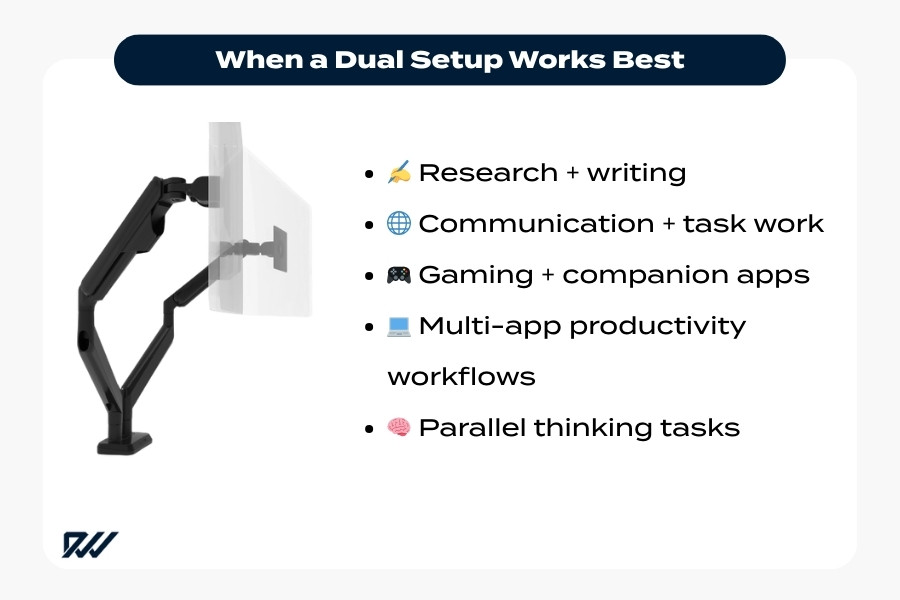
A dual monitor setup uses two displays connected to one computer, allowing you to spread your workspace across both screens. Instead of constantly switching between tabs and windows, you can keep multiple applications visible at once, which often supports smoother multitasking.
Modern operating systems such as Windows, macOS and Linux make this easy by extending your desktop across displays. This approach is increasingly popular among remote workers, students and creatives who want a more flexible desk setup without moving to a single ultrawide monitor.
That said, adding a second screen changes how you organise your workspace and introduces practical considerations like desk space and ergonomics.
How Dual Screens Work
When using two monitors, your system typically offers two main display modes:
- Extended display — each monitor shows different content, creating one large workspace. This is the most common option for productivity and multitasking.
- Mirrored display — both screens show the same content, useful for presentations or collaboration but less helpful for everyday workflows.
With extended display, you can drag windows between screens, assign apps to specific monitors and customise layout preferences.
Common Dual Monitor Configurations
Dual monitor setups can be arranged in several ways depending on your tasks and available space:
- Horizontal (side-by-side) — the most common layout for office work and general multitasking
- Vertical orientation — useful for coding, reading documents or social media workflows
- Stacked (one above the other) — helpful when desk depth is limited
- Mixed-size setups — pairing a main display with a smaller secondary screen or a laptop
These variations allow users to tailor their workspace without committing to a large single display.
Key Benefits of Two Screens
Two displays can improve workflow in several practical ways:
- Better multitasking — keep multiple apps visible without constant switching
- Improved productivity — faster reference between documents, tools and communication apps
- Clearer organisation — dedicate each screen to a specific task
- Specialised workflows — timelines, dashboards or monitoring tools can stay open continuously
For many people, the biggest advantage is reduced friction when moving between tasks.
Potential Drawbacks
Despite the advantages, a dual monitor setup isn’t automatically better for everyone.
- Higher cost — additional monitor, cables and sometimes mounting equipment
- More desk space required — especially on smaller work surfaces
- Cable clutter — extra power and display connections
- Neck and eye movement — poor positioning can cause discomfort over time
Understanding these trade-offs helps you decide whether a second screen supports your routine or adds complexity.
This naturally leads to a key question: does having two screens actually improve performance, or can a single monitor setup deliver similar results depending on the task?
Productivity: Single vs Dual Monitor Performance
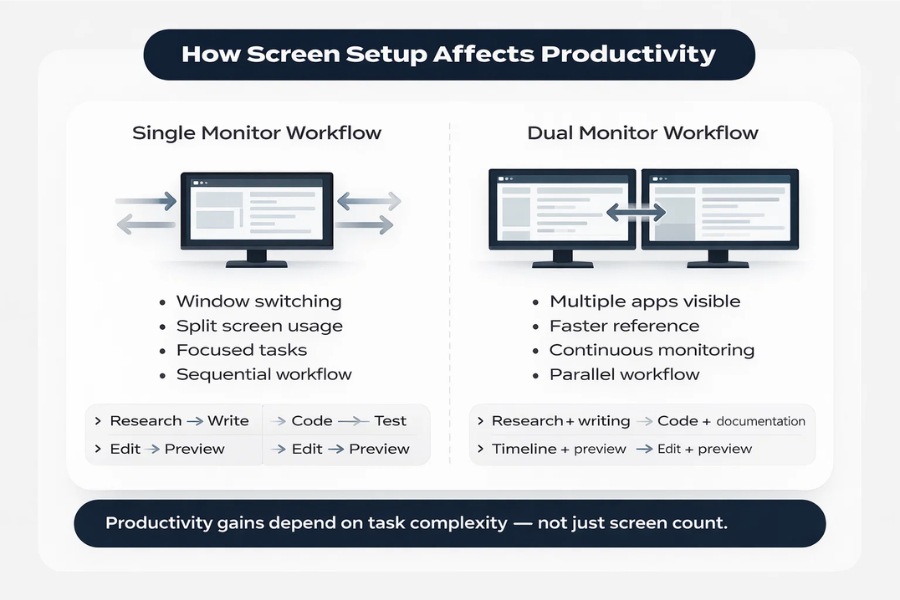
When comparing single vs dual monitor productivity, the outcome depends less on the number of screens and more on the type of work you do. Some workflows benefit greatly from extra space, while others thrive on the focus a single display provides.
Multitasking is the clearest difference. A dual monitor setup reduces task switching by allowing you to view multiple applications simultaneously, whereas a single monitor setup often relies on split-screen tools or frequent window changes. Over time, this can influence workflow speed and mental load.
Real-world examples highlight the contrast. A student researching while writing can keep sources open on one screen and their document on another. Developers often run code on one monitor while reading documentation or testing on the second, and video editors may place timelines on one display while previewing content on another.
However, more screen space can also introduce distraction. Some users find a single monitor improves focus because only one primary task is visible, particularly for writing, studying or deep work sessions. In these cases, productivity comes from simplicity rather than expansion.
Ultimately, the best choice balances efficiency with concentration. A dual monitor setup often supports heavy multitasking, while a single monitor setup can streamline workflows that prioritise clarity and minimal interruptions.
With performance differences in mind, the next step is considering how each option affects your physical workspace, including desk layout, ergonomics and comfort.
Ergonomics and Desk Space Considerations
When deciding between a single vs dual monitor setup, physical comfort is just as important as productivity. Poor positioning can lead to neck strain, eye fatigue and reduced focus over time, especially during long work or study sessions. A well-planned desk setup helps you stay comfortable and maintain healthy posture.
Both single and dual monitors can be ergonomic when arranged correctly, but the space required — and how you interact with your screens — differs. Thinking about desk size, viewing distance and mounting options early can prevent problems later.
Desk Size and Layout
Desk dimensions influence how practical each setup feels day to day. A single monitor setup typically needs less width and fewer cables, making it easier to manage on compact desks or shared spaces.
Dual monitor setups require additional width, room for stands and enough depth to maintain a comfortable viewing distance. It’s also worth considering cable routing, keyboard placement and whether you need flexibility to reposition screens for different tasks.
Neck Movement and Eye Strain
Screen positioning plays a major role in comfort. With one display, the goal is straightforward — centre the monitor directly in front of you at eye level and keep it roughly an arm’s length away.
With two screens, it helps to designate a primary display. Place your main monitor centrally and position the secondary screen slightly to the side to reduce excessive neck turning. Matching height and brightness across displays can also minimise eye strain during multitasking.
Mounting Options and Positioning
Monitor arms can transform both single and dual setups by freeing desk space and improving positioning. They allow height adjustment, tilt and rotation, which helps maintain better posture without stacking books under your screen.
Other options include stacked layouts, laptop stands and mixed configurations that combine a main display with a secondary reference screen. These adjustments make dual monitor setups more manageable while keeping a minimalist feel.
Comfort and layout naturally connect to another practical question — how much each setup costs and whether the investment makes sense for your workflow.
Cost Comparison: One Screen vs Two

The financial side of a single vs dual monitor decision involves more than simply buying another display. Hardware, accessories and potential upgrades all contribute to the overall cost of building a functional desk setup.
A single monitor setup usually has the lowest entry cost, while a dual monitor setup introduces additional spending but may offer efficiency gains that justify the investment. The right choice depends on budget, workload and how long you expect the setup to last.
Initial Hardware Costs
Monitor pricing varies widely depending on size, resolution and features. Entry-level displays are affordable, but higher-quality panels designed for colour accuracy, gaming or ultrawide monitor experiences increase costs.
With dual monitors, some users buy two matching screens for visual consistency, while others mix an existing display with a new one to reduce spending. Both approaches work — the decision often comes down to budget and aesthetic preference.
Accessories and Hidden Expenses
Additional screens often bring extra accessories:
- Monitor arms or upgraded stands
- Display cables and power strips
- Docking stations or USB hubs for laptops
- Possible graphics card upgrades for demanding workloads
- Desk upgrades to support the added space
These smaller purchases can add up, particularly when building a more permanent workspace.
Long-Term Value
Cost isn’t only about the initial purchase. A dual monitor setup may provide productivity gains that save time over months or years, especially for workflows involving heavy multitasking.
On the other hand, a well-chosen single monitor — particularly a larger or ultrawide model — can offer longevity with fewer upgrades. Factors such as resale value, upgrade cycles and changing work habits all influence long-term value.
With cost considerations covered, the next step is exploring how different setups perform across specific use cases such as gaming, creative work and everyday productivity.
Gaming: Single vs Dual Monitor Experience
Gaming priorities often differ from productivity goals. While work setups focus on multitasking, gaming typically centres on immersion, responsiveness and visual quality — which changes how the single vs dual monitor decision plays out.
Many players prefer a strong single monitor setup for the main game, but a second screen can support streaming, communication and background tools. The right choice depends on whether you value pure gameplay focus or a more flexible gaming desk setup.
Immersion and Performance
A single high-quality display often delivers the best gaming experience. Larger screens, higher refresh rates and better colour accuracy help create immersion without distractions from secondary apps.
Focusing your budget on one monitor can also improve performance consistency. Gamers frequently prioritise refresh rate, resolution and response time on a main display rather than splitting resources across two screens or moving to an ultrawide monitor.
Streaming and Companion Screens
A dual monitor setup becomes more useful when gaming extends beyond playing. Streamers and content creators often keep the game on one screen while using the second for:
- Chat monitoring
- Streaming software controls (such as overlays and scene switching)
- Guides, maps or walkthroughs
- Discord and other communication tools
This separation keeps the gameplay view clean while maintaining visibility of essential tools.
Hardware Requirements
Running two displays usually requires available GPU outputs and enough desk space for comfortable positioning. While a second monitor doesn’t always reduce game performance, demanding setups may require attention to graphics settings and refresh rate matching.
Consistency also matters — mismatched refresh rates or panel quality can feel visually uneven. Planning cable management and placement helps avoid clutter, particularly on smaller desks.
Beyond gaming, the benefits of additional screen space become even more noticeable in professional and creative workflows.
Creative Work and Professional Use
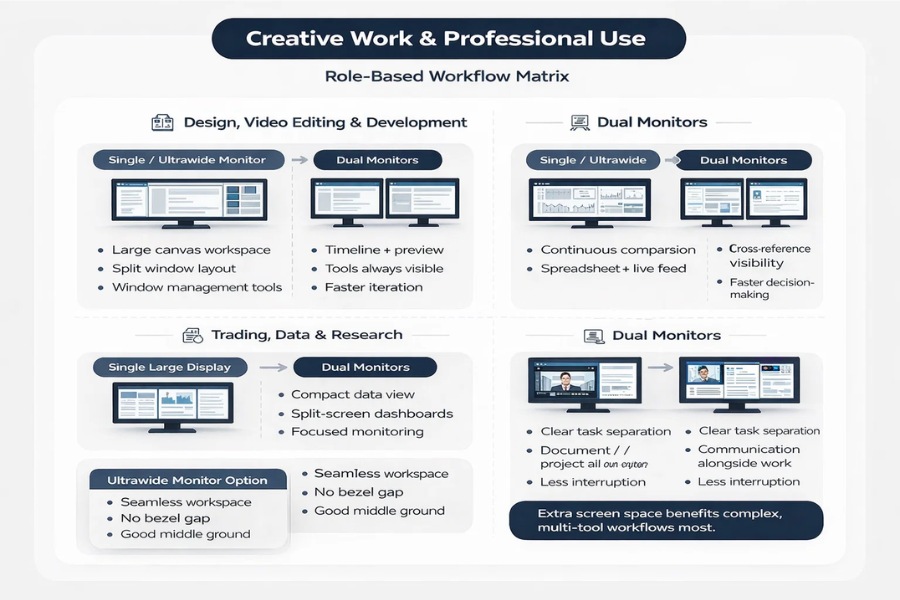
Certain professions gain clear advantages from extra screen space because their workflows involve multiple tools, reference material and live previews. In these environments, the single vs dual monitor decision often has a direct impact on efficiency and workflow clarity.
That said, a single high-resolution display or ultrawide monitor can sometimes provide similar benefits without managing two separate screens. The best choice depends on how your tasks are structured rather than simply how many windows you open.
Design, Video Editing and Development
Creative and technical roles frequently rely on simultaneous visibility. Designers may keep tool panels on one screen while working on a canvas on another, and video editors often separate timelines from preview windows.
Developers use dual monitors to view code, documentation and testing environments at the same time. This reduces context switching and supports faster iteration during complex projects.
Trading, Data Analysis and Research Tasks
Data-heavy roles benefit from continuous comparison. Traders and analysts often monitor dashboards, spreadsheets and live feeds across multiple displays, allowing quicker decision-making.
Researchers similarly use dual monitor setups to keep source material visible while writing or analysing information. The ability to cross-reference without constant switching can noticeably improve workflow speed.
Remote Work and Collaboration
In everyday professional settings, two screens help separate communication from core tasks. One monitor might host meetings or messaging apps while the other holds documents, presentations or project tools.
However, some remote workers achieve similar results with a single large monitor using window management features. The balance depends on how frequently you multitask and how permanent your desk setup is.
With these use cases in mind, the next step is understanding the technical requirements needed to run one or two monitors smoothly.
Technical Requirements for Dual Monitors
If you’re considering a second screen, the good news is that most modern computers already support multiple displays. Whether you use a desktop or laptop, running a dual monitor setup is usually straightforward with the right ports and basic configuration.
The key factors are available connections, graphics capability and how your operating system manages windows across screens. Understanding a few simple checks can help you decide if your current device is ready or if you need small upgrades.
Graphics Card and Ports
To run two monitors, your device needs at least two display outputs or a way to expand them. Common connections include:
- HDMI and DisplayPort on desktops and many laptops
- USB-C with display support (often labelled DisplayPort Alt Mode)
- Docking stations that add extra outputs for laptops
Some lightweight laptops only support one external display without a dock, so checking your device specifications is useful before buying another screen.
Resolution and Scaling
Using two monitors doesn’t require them to match, but differences in resolution and size can affect how windows behave. Mixed DPI (for example, a 4K display alongside a 1080p monitor) may require scaling adjustments to keep text readable.
Matching monitors creates a more seamless experience, while mixed setups offer flexibility at a lower cost. Most operating systems allow independent scaling so each display feels comfortable to use.
Software Features and Window Management
Operating systems include built-in tools that make multitasking across screens easier. Features such as snap layouts, window docking and virtual desktops help organise apps across a dual monitor workspace.
Third-party tools can add automation, custom shortcuts and advanced window positioning, but many users find the default features sufficient. Once configured, switching between a single monitor setup and two screens becomes routine.
If managing two separate displays feels excessive, there are modern alternatives that offer similar benefits with a different approach.
Alternatives to Dual Monitors
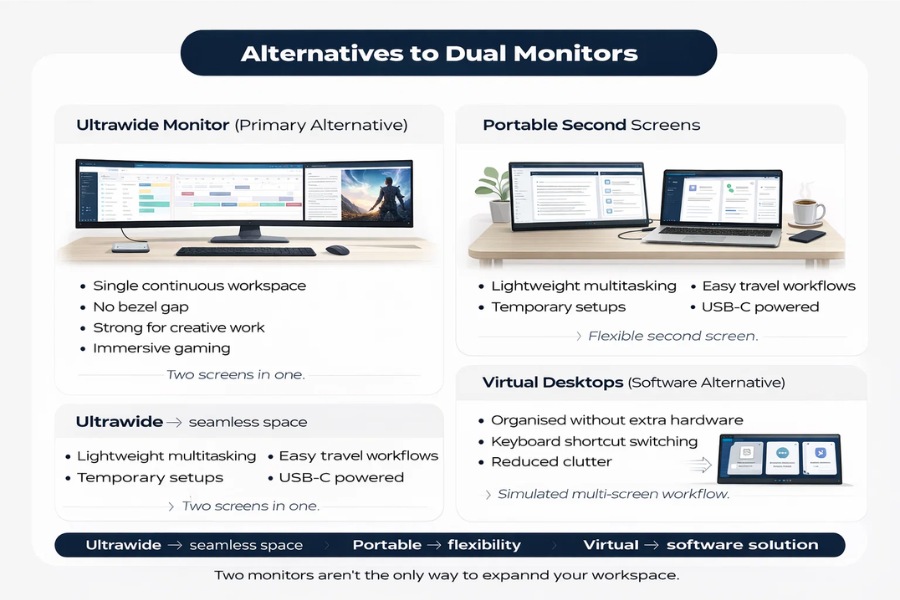
Two separate monitors aren’t the only way to expand your workspace. Modern display options provide hybrid approaches that sit between a single monitor setup and a full dual monitor configuration.
These alternatives can support multitasking while reducing cable clutter or improving portability. The right option depends on how permanent your desk setup is and how you prefer to organise tasks.
Ultrawide Monitors
An ultrawide monitor creates one large continuous workspace instead of two separate screens. This removes the bezel gap while still allowing multiple windows to sit side by side.
Ultrawide displays are popular for gaming, design and video editing because timelines and wide interfaces benefit from uninterrupted space. The trade-off is cost and reduced flexibility compared with two independent monitors.
Portable Second Screens
Portable monitors act as temporary companion displays, particularly for laptop users. They’re lightweight, often powered via USB-C and easy to pack for travel or flexible work environments.
This approach supports occasional multitasking without committing to a permanent dual monitor desk setup. However, smaller screen sizes and lower brightness can limit long-term use.
Virtual Desktops
Software solutions can simulate multiple workspaces without extra hardware. Virtual desktops let you separate tasks into different environments and switch between them with shortcuts.
While this doesn’t provide the same simultaneous visibility as physical screens, it helps maintain organisation on a single monitor setup. For some users, this balance reduces distraction while preserving flexibility.
With these alternatives explored, the next step is understanding how to choose the right setup based on your workflow, space and priorities.
How to Decide: Single vs Dual Monitor
Choosing between a single vs dual monitor setup isn’t about finding a universally “better” option. The right choice depends on your workflow, available desk space, budget and how comfortable you feel managing multiple screens.
Some users benefit immediately from extra screen space, while others see greater gains from a clean, focused environment. Asking a few practical questions can make the decision clearer and prevent unnecessary upgrades.
Questions to Ask Before Choosing
Consider how you actually work day to day:
- Do you frequently multitask between apps or documents?
- Do you need reference material visible while working?
- Is your desk large enough for two displays comfortably?
- Does your device support multiple screens without extra accessories?
- Would a larger or ultrawide monitor solve your needs instead?
These questions help identify whether you need simultaneous visibility or simply better organisation.
Matching Setup to Workflow
Different workflows favour different approaches.
- Single monitor setup: best for focused tasks such as writing, studying, coding sessions with minimal context switching and casual gaming
- Dual monitor setup: ideal for parallel workflows like research and writing, editing with previews, development and monitoring dashboards
The key difference is whether your tasks run sequentially or side by side.
When to Upgrade
Upgrading often makes sense when friction becomes noticeable. Common triggers include:
- Constant window switching slowing down work
- Transitioning to remote work with more meetings and documents
- Starting creative or technical projects that require multiple tools
- Building a permanent desk setup rather than working from a laptop alone
If these patterns sound familiar, adding a second screen — or moving to an ultrawide monitor — can feel like a natural progression.
Once you’ve chosen a direction, optimising your workspace ensures you get the most from whichever setup you use.
Tips for Setting Up Your Workspace
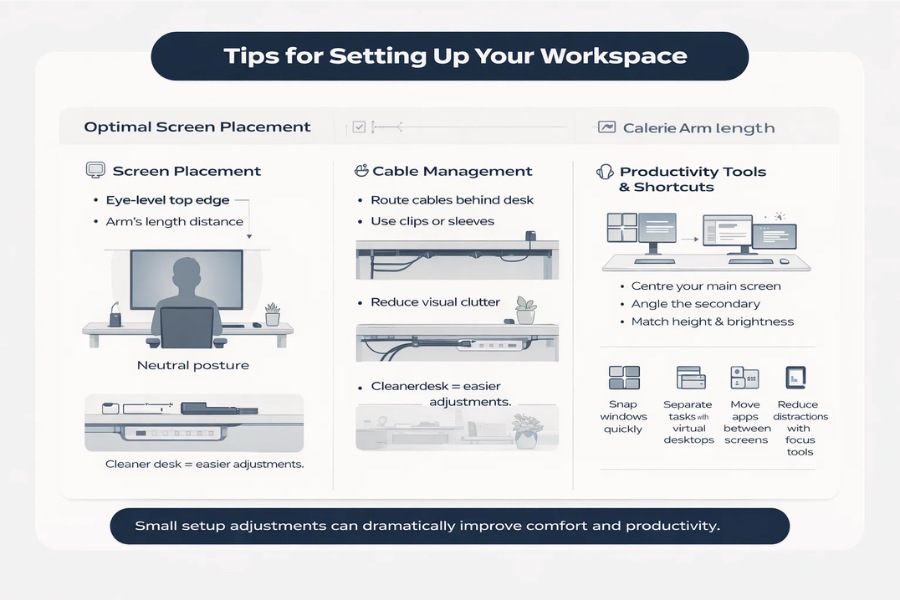
The quality of your desk setup matters as much as the number of screens. Good positioning, organisation and simple productivity tools can improve comfort and efficiency whether you use one display or two.
Small adjustments often deliver noticeable benefits, especially for long work sessions or study periods.
Optimal Screen Placement
Position your primary monitor directly in front of you with the top of the screen roughly at eye level. Keep the display about an arm’s length away to reduce eye strain and maintain neutral posture.
If using a dual monitor setup, centre the main screen and place the secondary display slightly to the side. Consistent height and brightness help create a more comfortable viewing experience.
Cable Management
Managing cables improves both aesthetics and usability. Simple solutions include cable clips, sleeves and routing wires along the back of the desk or monitor arms.
Reducing clutter makes it easier to adjust your workspace and prevents accidental disconnections, particularly with laptop docking setups.
Productivity Tools and Shortcuts
Software can enhance any monitor arrangement. Useful options include:
- Window snapping and split-screen features
- Virtual desktops for task separation
- Keyboard shortcuts for moving apps between screens
- Workspace or focus apps that minimise distractions
Combining these tools with a thoughtful desk setup helps maximise productivity regardless of whether you choose a single monitor setup, a dual monitor setup or an ultrawide monitor approach.
With your workspace optimised, it’s time to bring everything together and decide which setup best supports your long-term workflow.
Single vs Dual Monitor: Quick Comparison Summary
If you’re deciding between a single vs dual monitor setup, a side-by-side overview can make the differences clearer. Each option supports different workflows, budgets and desk setups, so the best choice depends on how you work rather than how many screens you own.
Below is a concise comparison to help you make a fast, practical decision.
Key Differences at a Glance
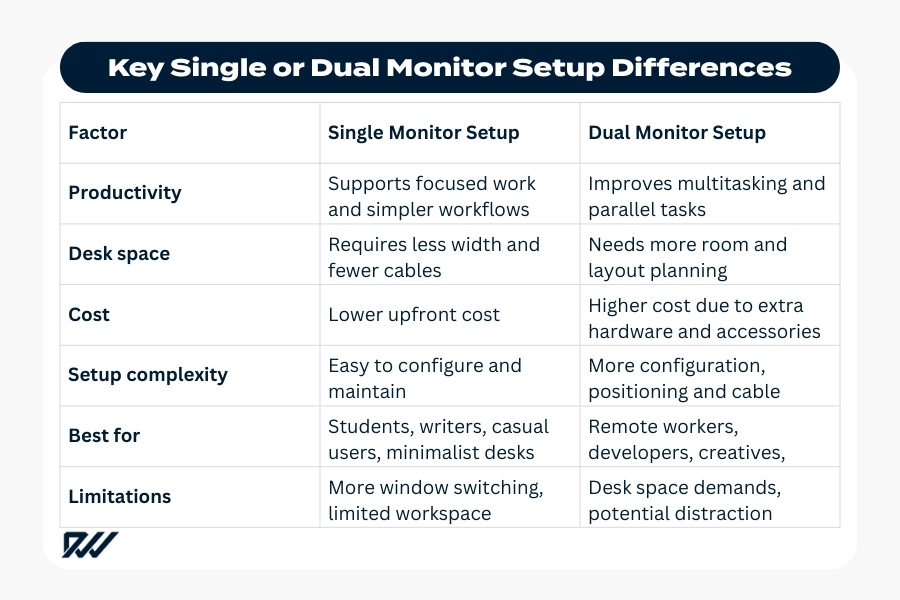
Both approaches can deliver strong productivity when matched to the right workflow.
Who Each Setup Suits Best
A single monitor setup suits users who prioritise simplicity, portability and deep focus. It works well for writing, studying, casual gaming and flexible laptop-based work.
A dual monitor setup is ideal for people who regularly multitask or need multiple tools visible at once. Developers, designers, remote professionals and streamers often see the biggest benefits.
With the key differences clear, the next step is addressing common questions that help finalise your decision.
Frequently Asked Questions
Is a dual monitor setup better for productivity?
A dual monitor setup often improves productivity when tasks run in parallel, such as research and writing or coding and testing. Having multiple apps visible reduces window switching and saves time. However, productivity gains depend on workflow — some users work faster with a single monitor setup that supports focus.
Can you be productive with one monitor?
Yes, many people are highly productive with one screen. Window snapping, virtual desktops and a larger display can provide enough workspace for most tasks. A single monitor setup is especially effective for deep work where fewer distractions improve concentration.
Do dual monitors reduce performance in gaming?
Dual monitors don’t usually reduce game performance if you play on one screen while using the other for background tasks. Performance depends more on game settings and your GPU. Very demanding multitasking, such as streaming, may increase system load.
Is an ultrawide better than two monitors?
An ultrawide monitor offers a continuous workspace without bezels, which many users find more immersive. Two monitors provide greater flexibility because each screen can host different tasks independently. The better option depends on whether you prefer seamless space or modular multitasking.
Do I need a powerful PC for dual monitors?
Most modern computers support two displays without needing high-end hardware. You mainly need available display ports or a docking station for laptops. Higher resolutions or demanding creative work may benefit from stronger graphics capability, but everyday multitasking typically works on standard devices.
Conclusion: Which Monitor Setup Is Best?
The single vs dual monitor decision ultimately comes down to how you work. Screen count alone doesn’t determine productivity — your tasks, available space and budget play a much bigger role in whether one display or two feels right.
Both options can support an effective desk setup when configured well. A single monitor setup offers simplicity and focus, while a dual monitor setup expands workspace and supports multitasking. Choosing the right approach means balancing efficiency with comfort and practicality.
Summary of Key Differences
A single monitor setup keeps things minimal, affordable and easier to manage, making it well suited to focused workflows and smaller desks. Dual monitors provide greater flexibility and visibility, which helps when tasks run in parallel or require constant reference between apps.
Neither approach is inherently better — the advantage appears when the setup matches your workflow and physical workspace.
Final Recommendations by User Type
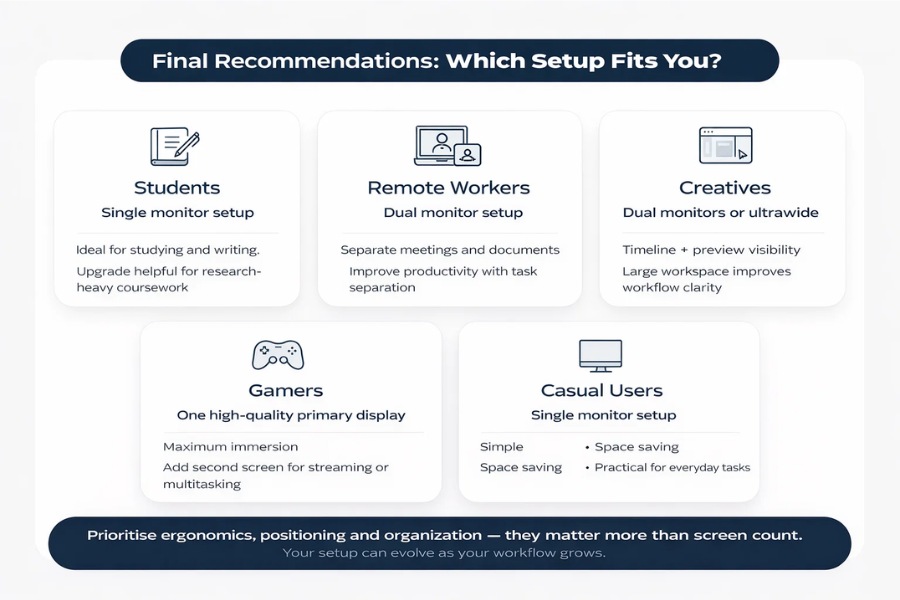
- Students: A single monitor setup is usually enough for studying and writing, with an upgrade helpful for research-heavy coursework.
- Remote workers: Dual monitors often improve productivity by separating meetings, documents and communication tools.
- Creatives: Additional screen space supports timelines, previews and tool panels, though a large or ultrawide monitor can be a strong alternative.
- Gamers: Focus on one high-quality primary display for immersion, adding a second screen if you stream or multitask.
- Casual users: Simplicity and space saving often make one screen the most practical choice.
Regardless of which setup you choose, prioritising ergonomics, positioning and organisation will have the biggest impact on comfort and productivity.
As workflows evolve and technology improves, your display setup can evolve too — making upgrades a gradual step rather than a one-time decision.